
Server-To-Server Integration
Follow the steps below to integrate Airbridge with Braze.Pre-setup
Before enabling the server-to-server integration with Braze in the Airbridge dashboard, you be completed. Refer to the developer guide below. If the SDK setup is not completed, Airbridge cannot be successfully connected to Braze even if the integration is enabled in the Airbridge dashboard. Also, if you have enabled the SDK integration between Airbridge and Braze in the past, we recommend deleting the codes related to Braze SDK integration that were added in the past.Submit Braze credentials
AttentionBefore you follow the steps listed below, the right code snippets must be added to the Airbridge SDK. If this pre-setup is not completed, Airbridge cannot be successfully connected to Braze even if you enable the integration in the Airbridge dashboard. Make sure to read the Developer Guide for Braze integration and complete the pre-setup first.
- Log in to your Braze account.
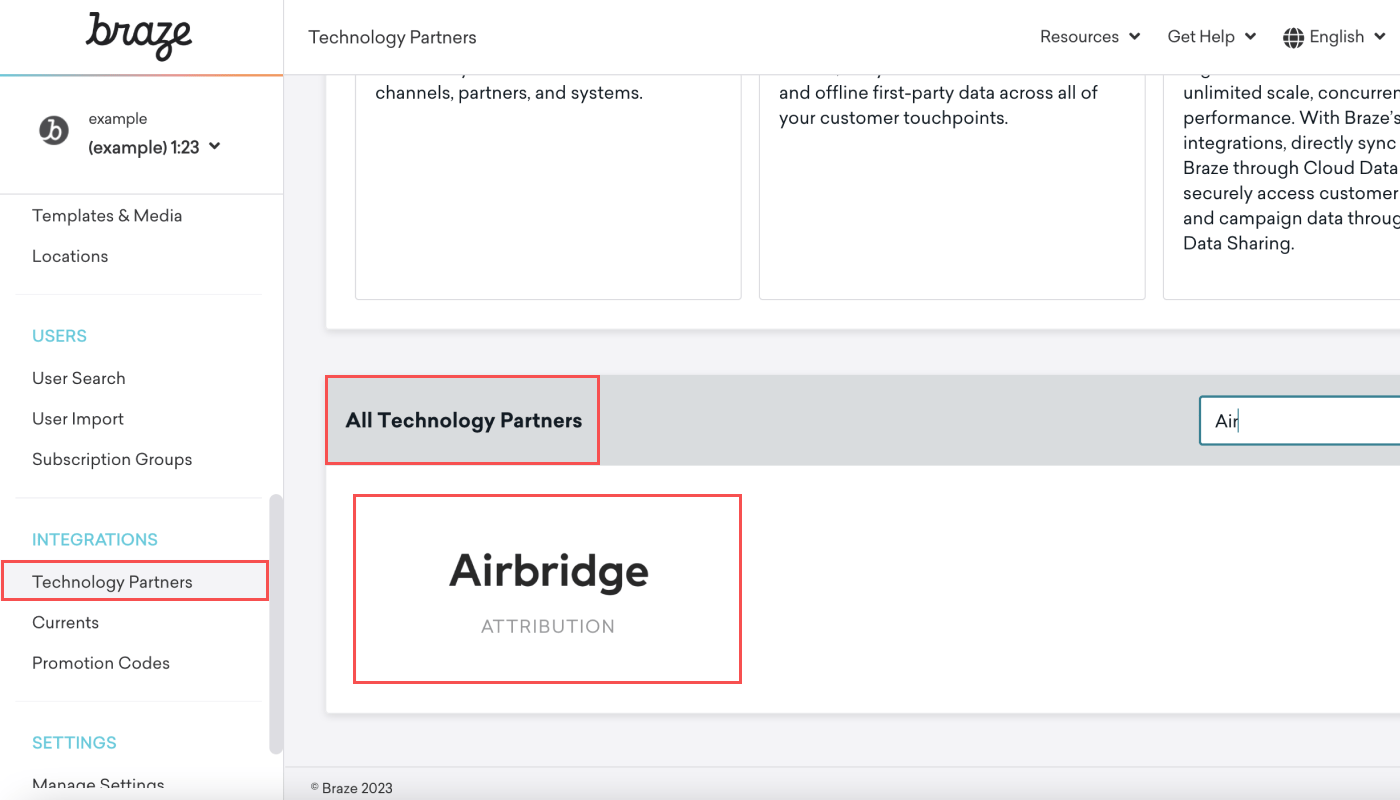
- Navigate to [Technology Partners] in the left sidebar and select Airbridge from [All Technology Partners].
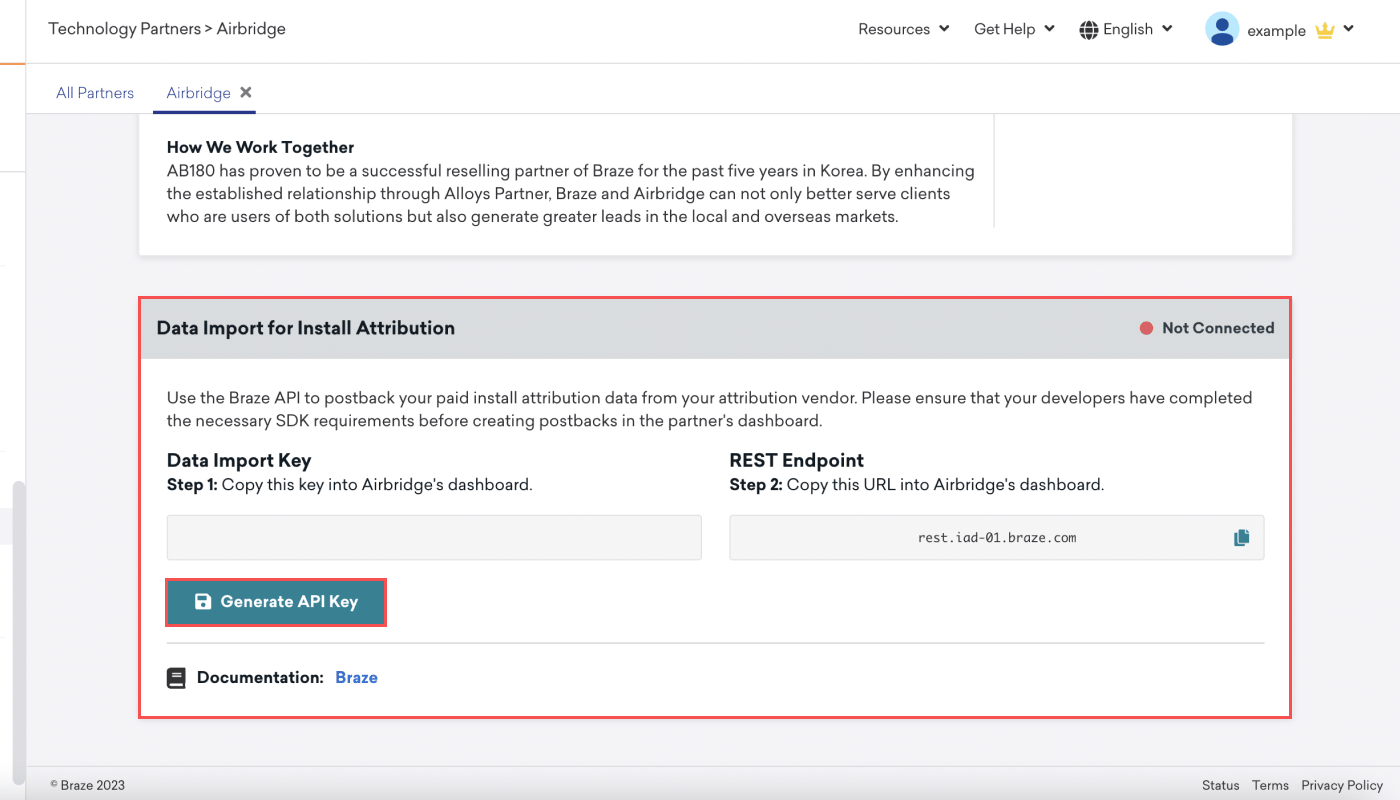
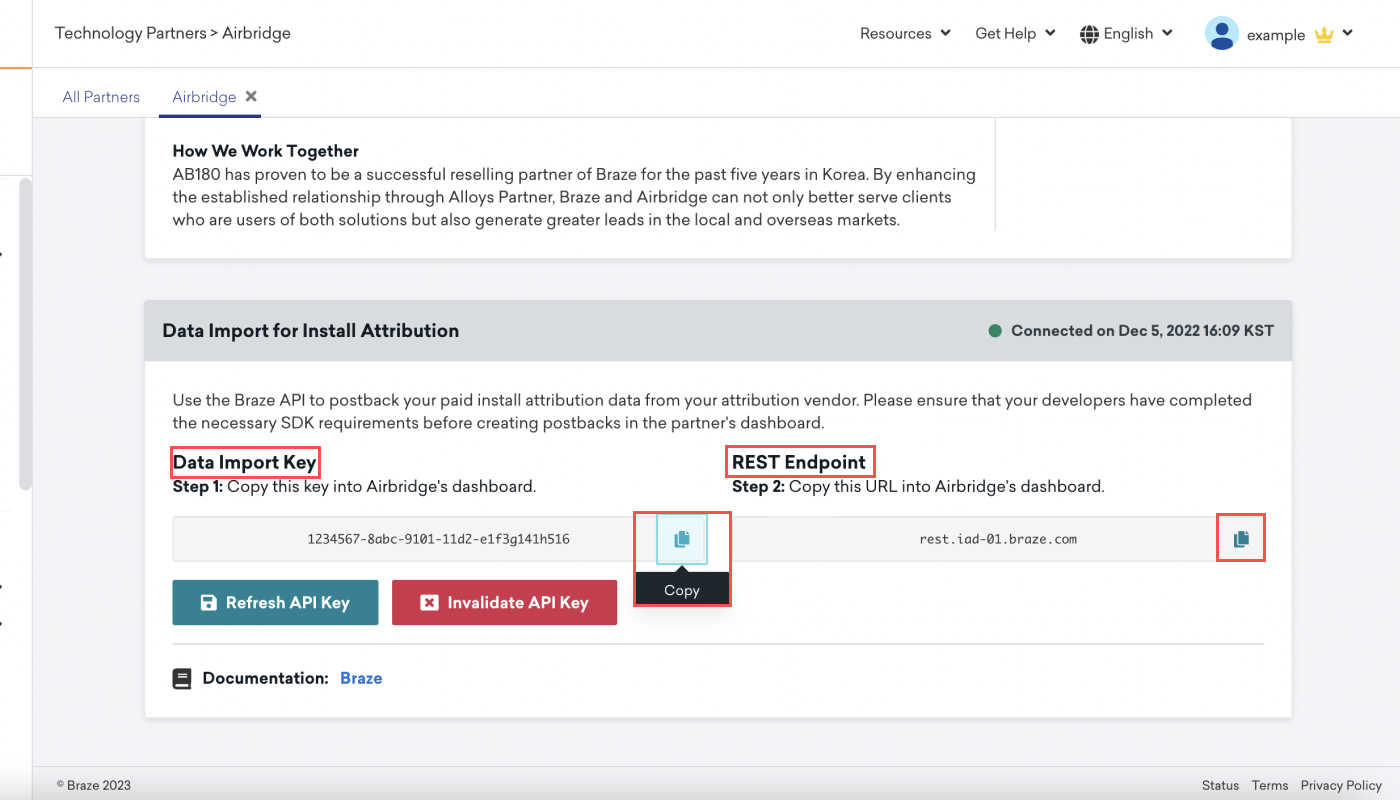
- Scroll down to the [Data import for install attribution] section to find the credentials required for the Airbridge and Braze integration. The credentials to copy are the Data Import Key and REST Endpoint. If you don’t have a Data Import Key yet, generate a new one. To replace an existing Data Import Key with a new one, click Refresh API key.
NoteBraze issues a separate Data Import Key for each purpose. The Data Import Key under [Data import for install attribution] is for the server-to-server integration, and the Data Import Key under [Data Import Using Cohort Import] is for sending audiences. Do not enter one key in place of the other.
- Click the [Copy] icon to copy the Data Import Key and REST Endpoint URL.
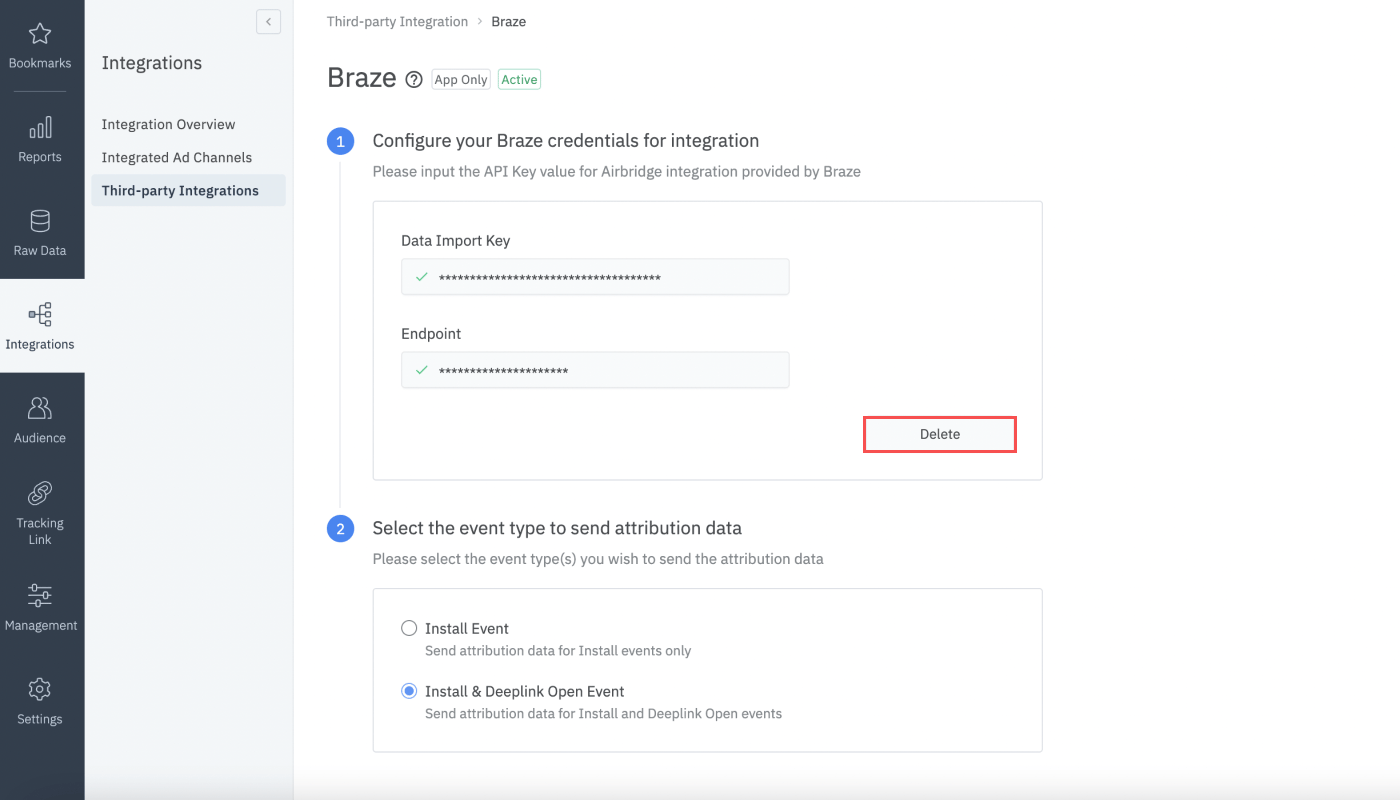
- Log in to your Airbridge account, navigate to [Integrations]>[Third-party Integrations], and select Braze.
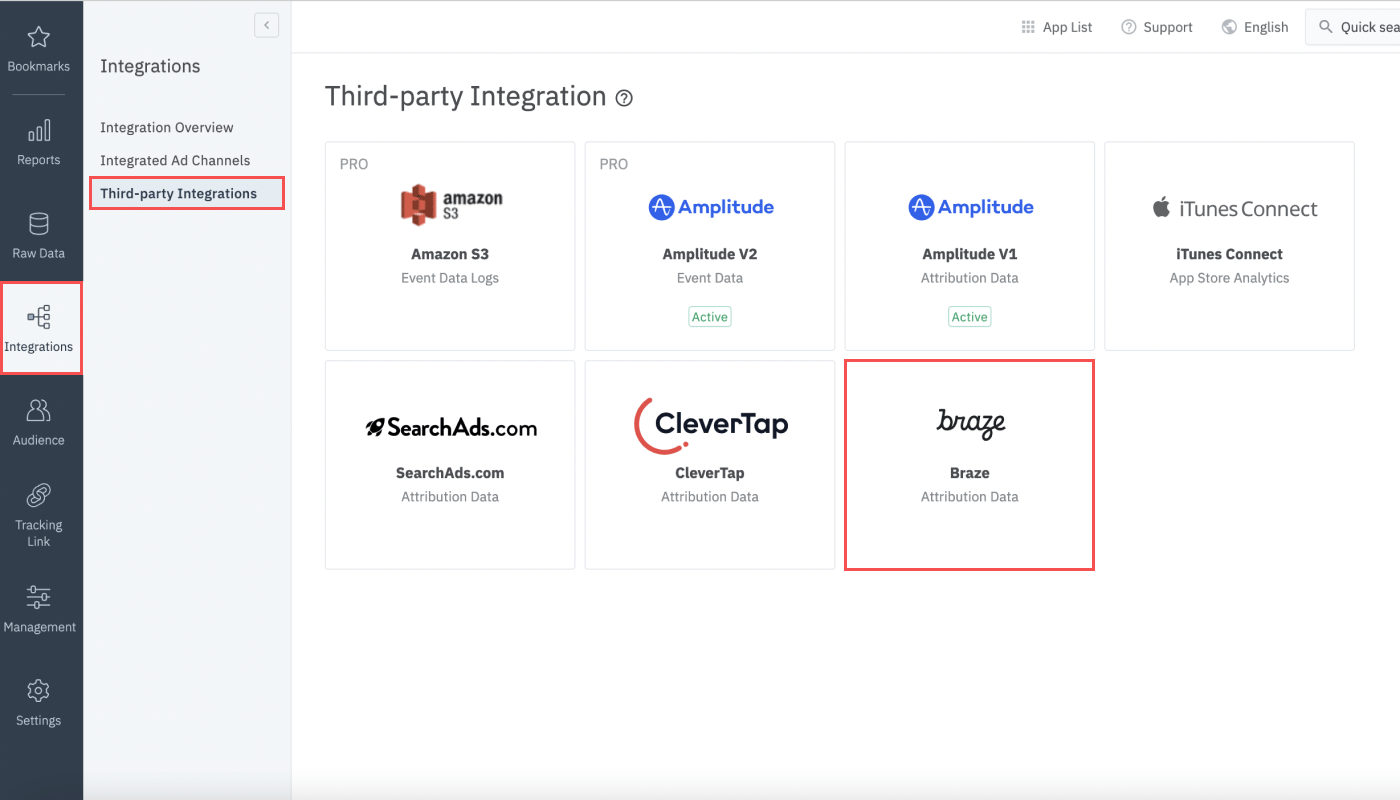
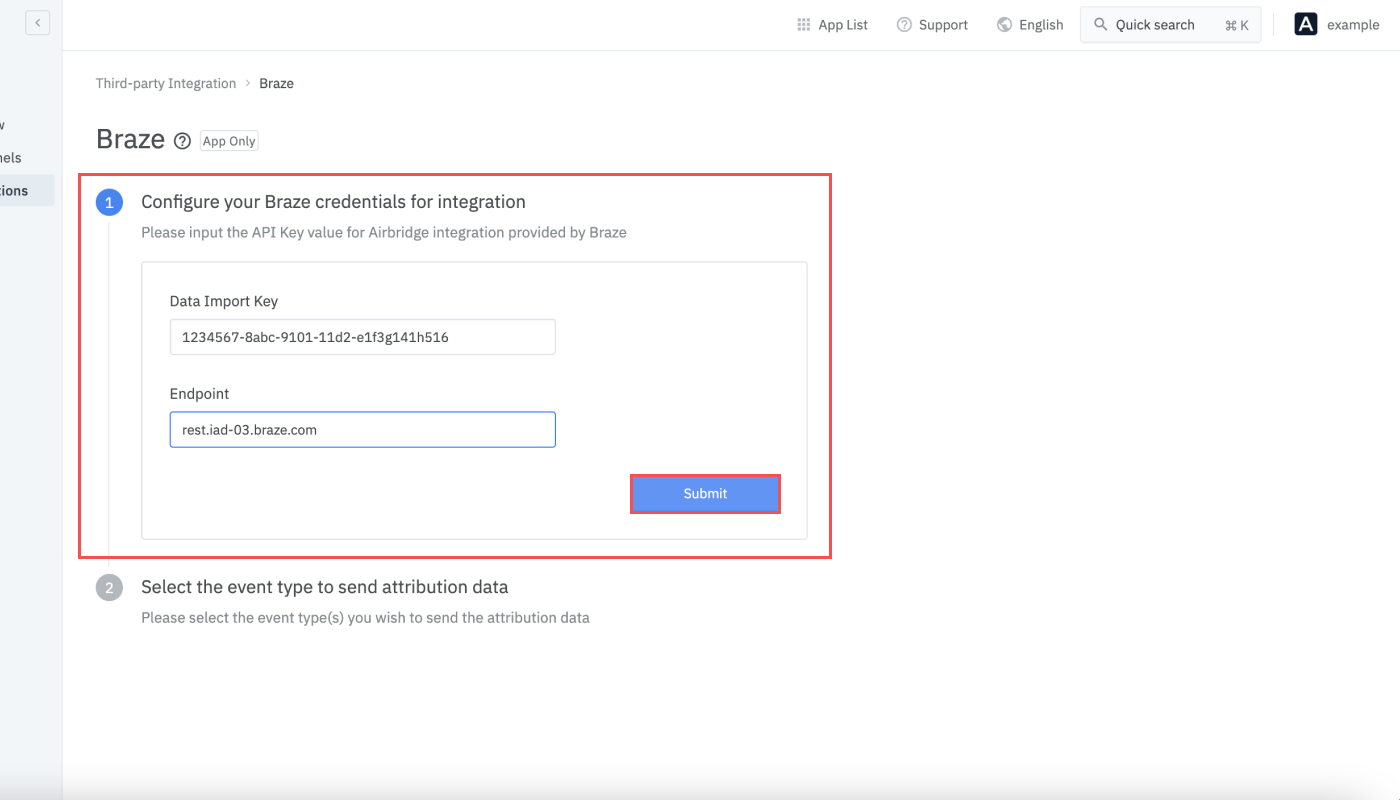
- Enter the Data Import Key and REST Endpoint URL you copied from Braze and click Submit. The Data Import Key consists of alphabet letters, numbers, and dashes (-), whereas the Endpoint URL consists of alphabet letters, numbers, dashes, and periods (.).
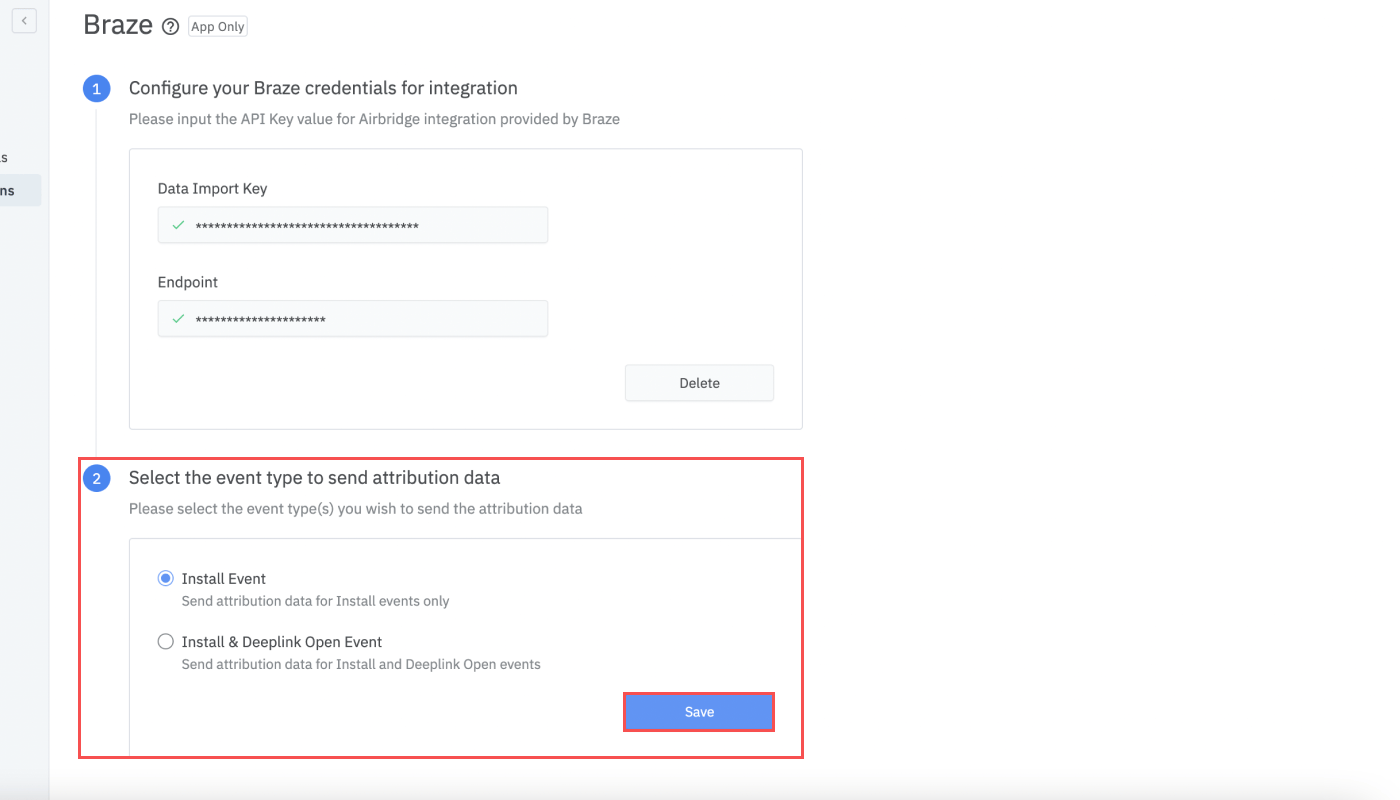
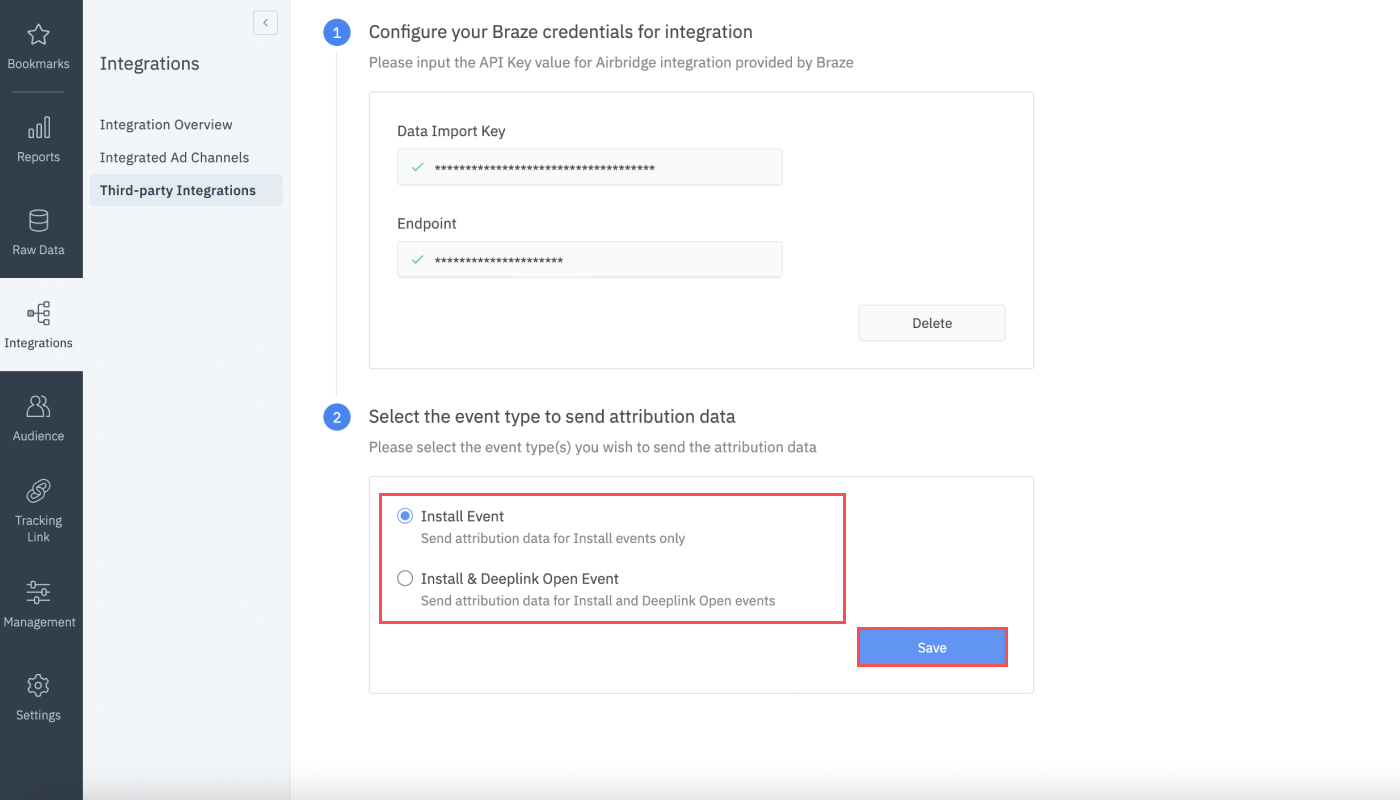
- Select the attribution data you wish to send to Braze and click Save. If you want to send the install attribution data only, select Install Event. If you want to send the deep link open attribution data as well, select Install & Deeplink Open Event.
Changing integration credentials
If the Data Import Key and Endpoint URL of your Braze account have changed, you must update them in Airbridge as well. Click on the asterisks (*) in the Data Import Key field and Endpoint field, enter the new values, and click Done.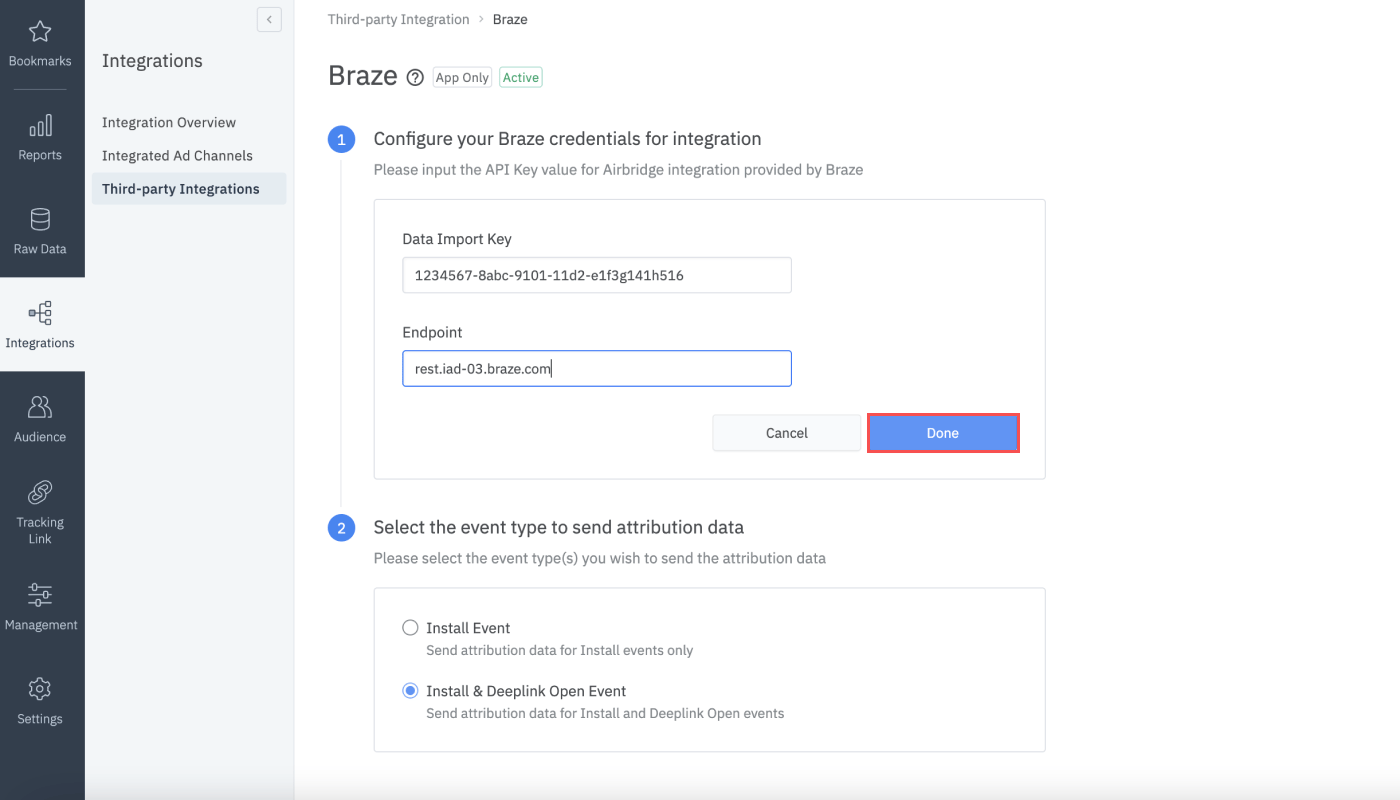
SDK Integration
Airbridge and Braze can be integrated through SDK as well. Note that there may be more delay in data transmission through SDK integration than through server-to-server integration. We recommend server-to-server integration for faster and more reliable data transmission. To learn more about the detailed integration guidelines, contact your Airbridge CSM. If you don’t have a dedicated CSM, contact the Airbridge Help Center.Available Data Fields
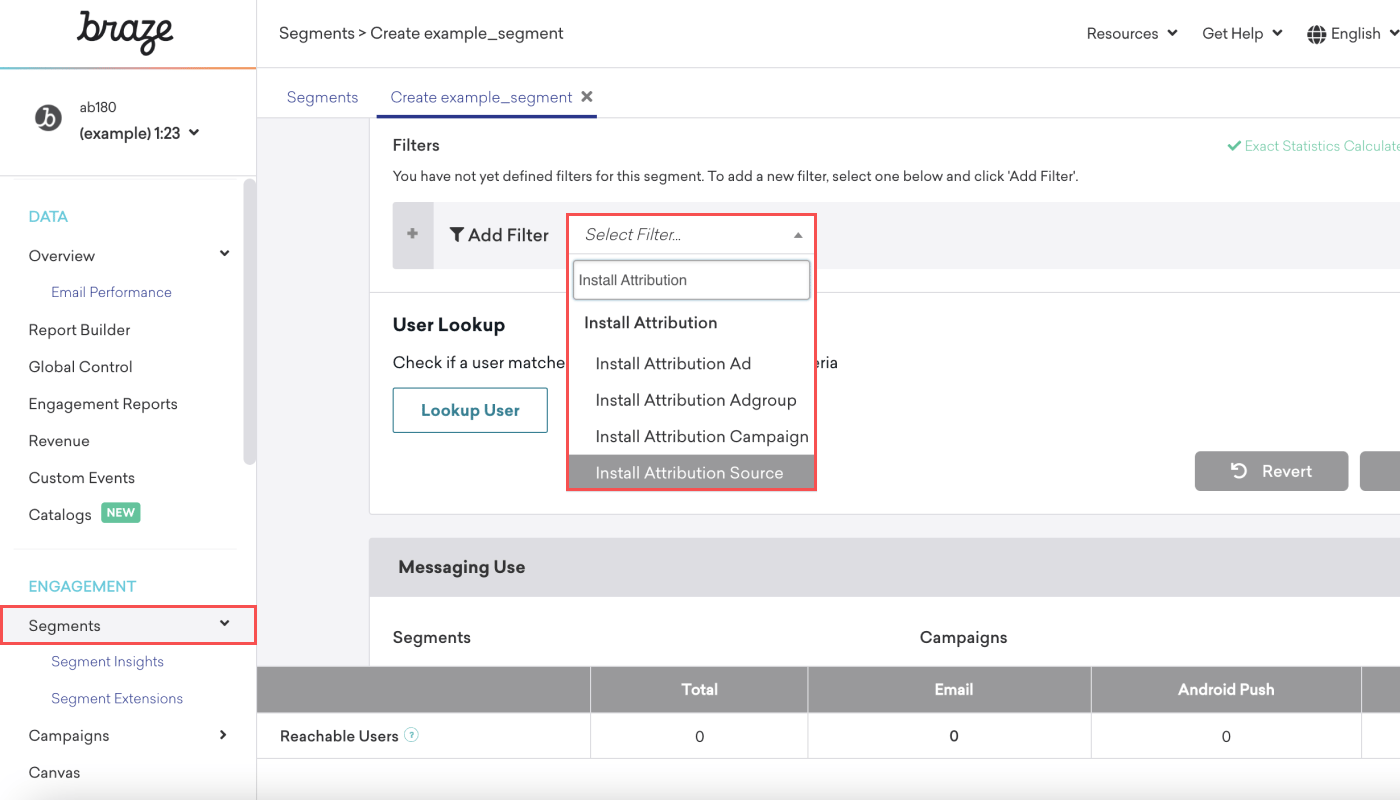
Assuming you configure your integration as suggested, Braze will map install and deep link open attribution data to segment filters. Under the Install Attribution group, you will find four data fields, as illustrated in the table below. When creating a new segment in Braze, you can use the four different segment filter options to leverage the attribution data transmitted from Airbridge.
When creating a new segment in Braze, navigate to [Segments] from the left sidebar and search “Install Attribution” to find the four segment filter options.
Attention
Meta Ads data sharing policy
Meta Ads data sharing policy
According to Meta’s privacy policy, attribution data from Meta Ads campaigns cannot be transmitted or shared with a third party. Only the advertiser that ran the ads can use the data internally to analyze Meta Ads campaign performance.To comply with Meta’s policy, Airbridge applies data masking to Meta Ads campaign data, which is visible in the Airbridge dashboard under the channel name
facebook.business. The masked data is sent to third parties with the channel changed to Restricted. Even if the integration is set up correctly, the masked data cannot be used in the third-party platform.Data collected through tracking links for web campaigns or tracking links for custom channels is not masked and can be viewed in the third-party platform. For details about tracking links for web campaigns, see Web Campaign Tracking - Meta Ads.Therefore, you cannot select Meta ad campaign data from the Install Attribution Source filter option when creating segments in Braze.Deep link open attribution data update
Deep link open attribution data update
The attribution data for campaigns that led to deep link open events are updated in Braze at the device level. Therefore, when several users share one device and only one user performs the deep link open event, the attribution data may be updated for all users.
Example) When User A and User C share one device
User event history:- User A installs the app at 1 pm after engaging with Campaign B, signs up, and logs in to the app
- User C performs a deep link open event after engaging with Campaign D, signs up, and logs in to the app