> ## Documentation Index
> Fetch the complete documentation index at: https://help.airbridge.io/llms.txt
> Use this file to discover all available pages before exploring further.
# Unity SDK (Deprecated)

**Deprecated SDK**
This SDK has been deprecated. Migrate to the latest version, [Unity SDK v4](/en/developers/unity-sdk-v4).
Starting October 1, 2026, we will fix only critical issues that could cause your app to be rejected in app store review, and on October 1, 2028, all support will end.
## Install SDK
**Note**
The Airbridge Unity SDK requires Unity version 2018.4 or later.
**Attention**
The Airbridge Unity SDK uses the Unity Jar Resolver, the External Dependency Manager for Unity, to manage library dependencies.
For Airbridge Unity SDK v1.9.2 and earlier, the following setup is required.
1. Set up the Unity package by referring to the repository below.
* [Unity Jar Resolver Repository](https://github.com/googlesamples/unity-jar-resolver)
2. Set up the EDM4U by referring to the setup guide below.
* [EDM4U Setup Guide](https://airbridge.readme.io/v1.1-en/docs/edm4u-setup-guide)
For Airbridge Unity SDK v.1.9.3 and later, the above setup is unnecessary as the SDK automatically imports all Airbridge plugins and EDM4U assets.
### Install package
1. Download the latest version of the [Airbridge Unity SDK](https://sdk-download.airbridge.io/unity/airbridge-unity-1.17.1.unitypackage).
2. Navigate to **\[Assets] >\[Import Package]>\[Custom Package...]** in Unity and add the package file.
3. The **\[AB180]** tab will appear in the top menu bar once the package is installed.
### Set up project
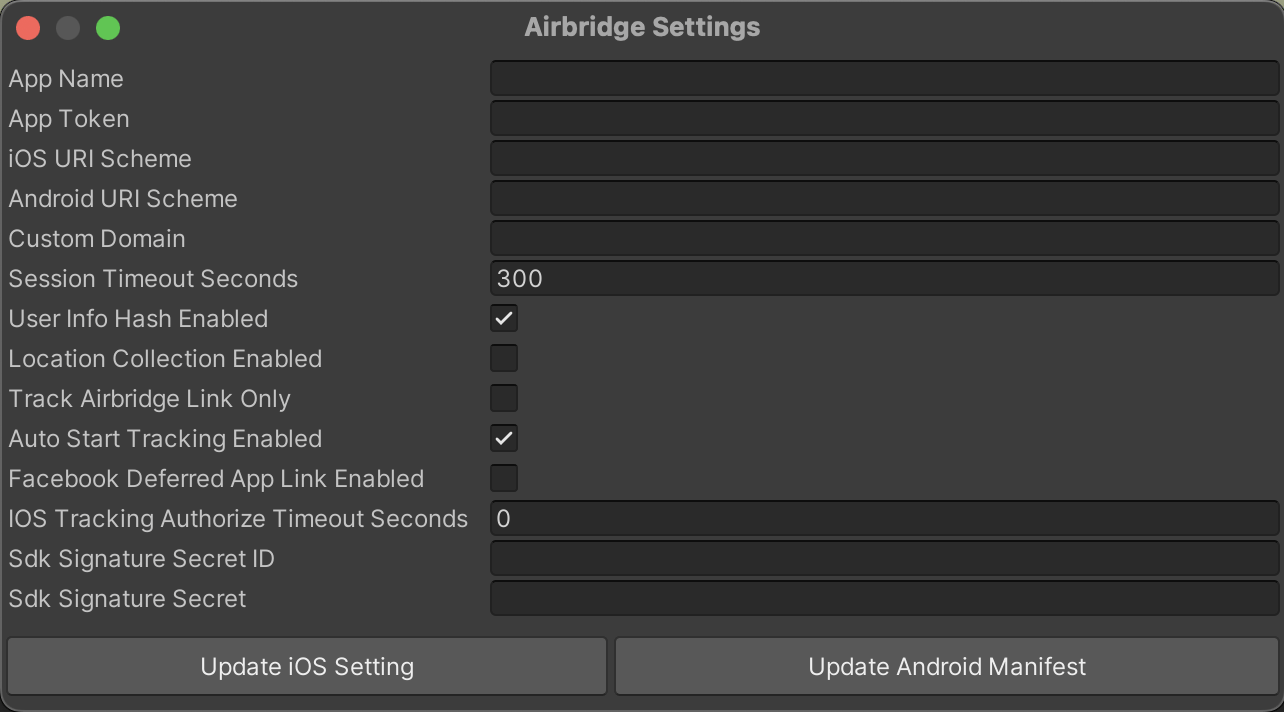
Navigate to **\[AB180]>\[Airbridge Settings]** in the top menu bar to open the following screen.
**Attention**
After filling out the fields, click **Update iOS App Setting** or **Update Android Manifest** to apply changes.
**Attention**
If you want to manually merge the `Android Manifest` file, navigate to **\[Project]>\[Plugins]>\[Airbridge]>\[Android]** and refer to the `AndroidManifest.xml` file.
#### Set up app information
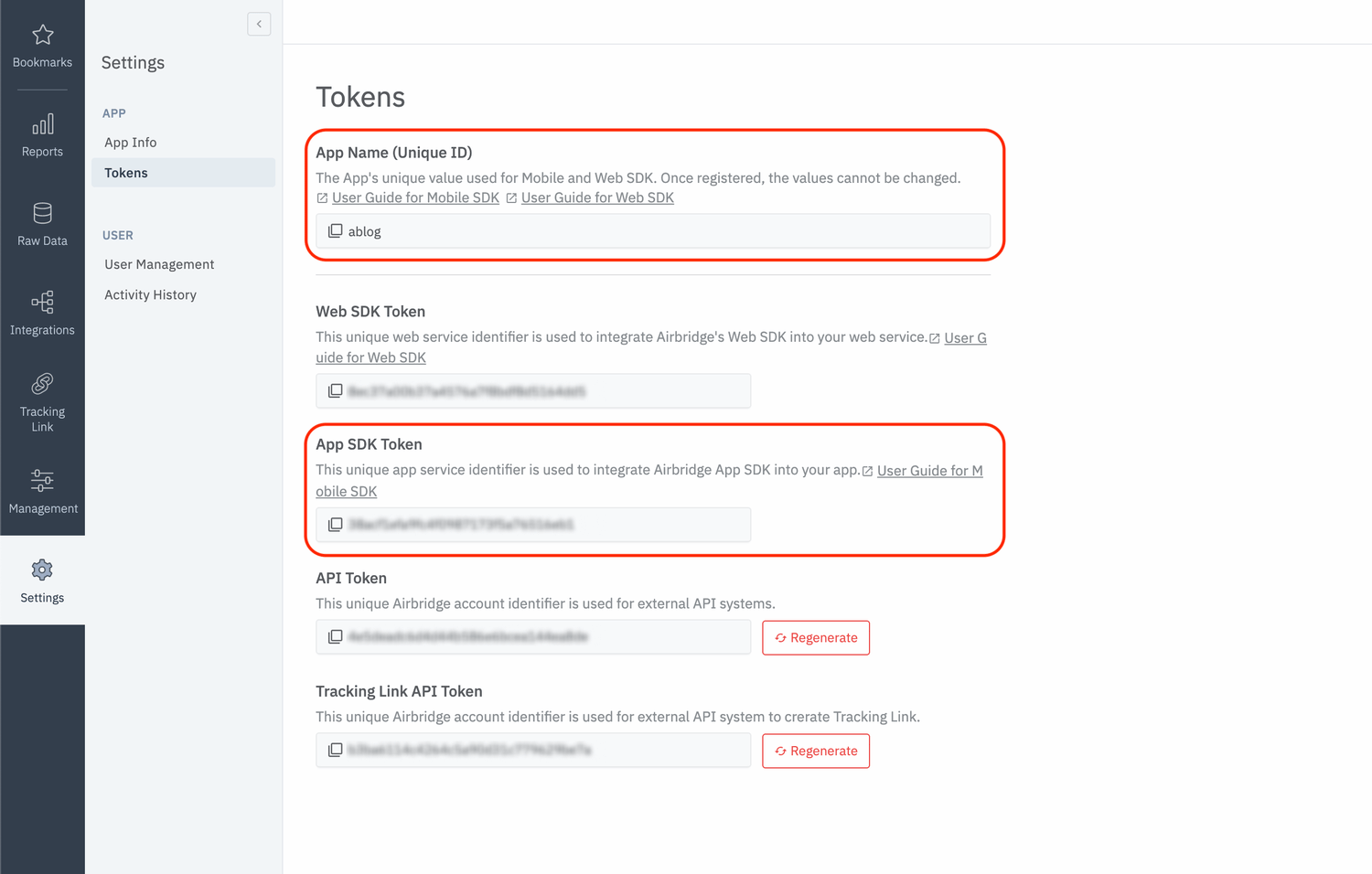
In the Airbridge dashboard, navigate to **\[Settings]>\[Tokens]** and copy the **App Name** and **Token**.
Then, go to Unity, navigate to **\[AB180]>\[Airbridge Settings]** in the top menu bar, and paste the App Name and App Token into the respective fields.
#### Initialization
The Airbridge Unity SDK does not require initialization. However, in particular cases, a migration process may be required per platform.
#### Set up Application Entry Point
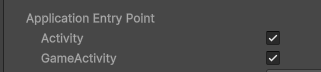
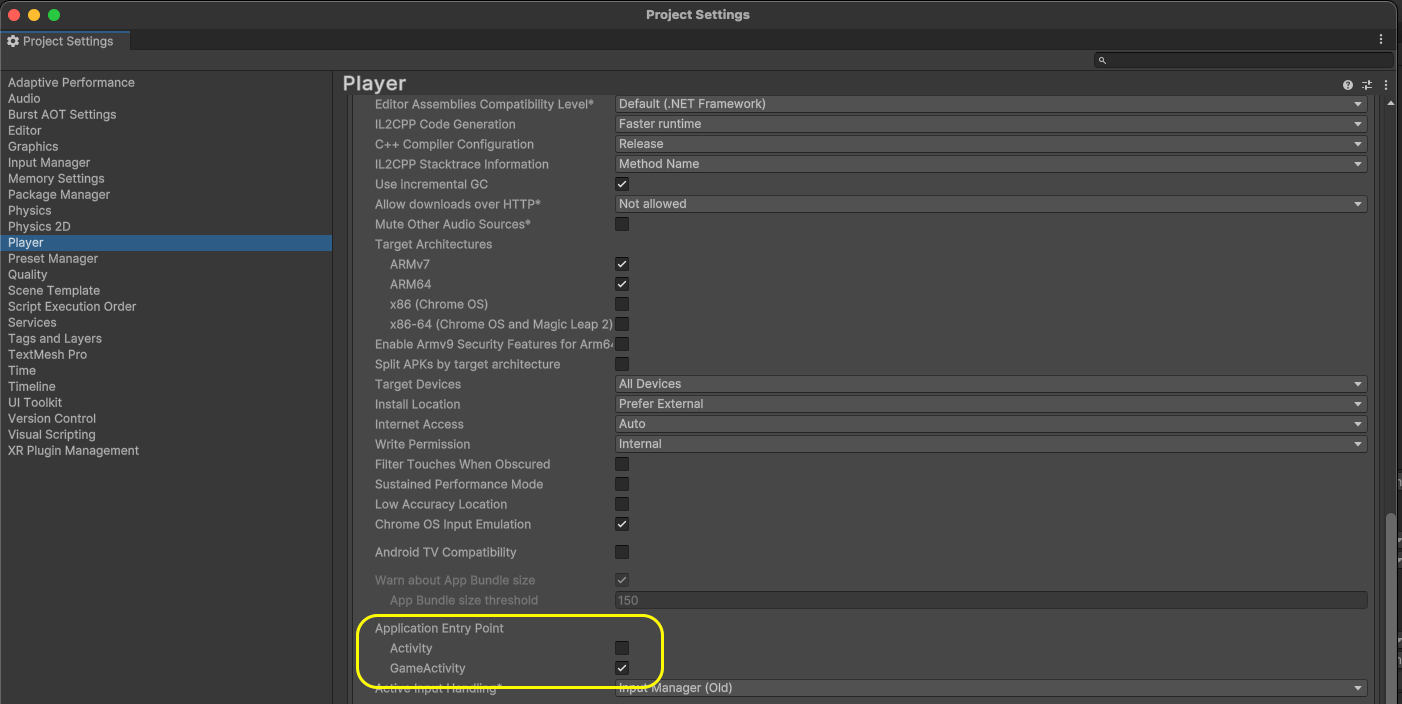
When using the Unity version 2023.1 or later, you can navigate to **\[Android Player Settings]>\[Other Settings]>\[Configuration]>\[Application Entry Point]** and set the "Application Entry Point" to **Activity**, **GameActivity**, or **Activity and Game Activity**. Refer to the information below to learn about the additional configurations that are required depending on how the "Application Entry Point" is set.
The Android Manifest file is automatically updated with the value entered in the **\[AB180]>\[Airbridge Settings]**, and therefore, no action is required.
###### v1.16.3 or later
The Android Manifest file is automatically updated with the value entered in the **\[AB180]>\[Airbridge Settings]**, and therefore, no action is required.
###### v1.16.2 or earlier
The custom Activity provided by the Airbridge Unity SDK is an Activity that inherits from com.unity3d.player.UnityPlayerActivity, and therefore, the following actions are required.
1. Remove the `Assets/Plugins/Airbridge/Android/java/co/ab180/airbridge/unity/AirbridgeActivity.java` file.
2. Create a Custom Activity file (`AirbridgeGameActivity.java`) as follows.
```c# lines theme={"theme":{"light":"github-dark-dimmed","dark":"github-dark-dimmed"}}
package co.ab180.airbridge.unity;
import android.content.Intent;
import android.os.Bundle;
import com.unity3d.player.UnityPlayerGameActivity;
public class AirbridgeGameActivity extends UnityPlayerGameActivity {
@Override
protected void onCreate(Bundle bundle) {
super.onCreate(bundle);
}
@Override
protected void onNewIntent(Intent intent) {
super.onNewIntent(intent);
setIntent(intent);
}
@Override
protected void onResume() {
super.onResume();
AirbridgeUnity.processDeeplinkData(getIntent());
}
}
```
3. Register the Custom Activity as follows in the Android Manifest file (`{UNITY_PROJECT}/Plugins/Android/AndroidManifest.xml`).
```xml lines theme={"theme":{"light":"github-dark-dimmed","dark":"github-dark-dimmed"}}
```
**Attention**
For development purposes, you can set up 2 application entry points.
###### v1.16.3 or later
1. Refer to the `AirbridgeActivity.java.template` file and `AirbridgeGameActivity.java.template` file located inside the `{UNITY_PROJECT}/Plugins/Airbridge/Android/java/co/ab180/airbridge/unity` folder to create your activities.
2. Apply each activity to your Android Manifest file.
3. The Android Manifest file will then be automatically updated with the values set in the **\[AB180]>\[Airbridge Settings]**.
###### v1.16.2 or earlier
Airbridge Unity SDK does not provide a custom Activity that inherits from com.unity3d.player.UnityPlayerGameActivity, and [setting the Intent Filter](/en/developers/deprecated-android-sdk-v2#set-up-intent-filter) to the value set in the ["AB180 → Airbridge Settings"](#project-setup) is only automatic for one Activity, so the following additional work is required.
1. Create a Custom Activity file (`AirbridgeGameActivity.java`) as follows.
```c# lines theme={"theme":{"light":"github-dark-dimmed","dark":"github-dark-dimmed"}}
package co.ab180.airbridge.unity;
import android.content.Intent;
import android.os.Bundle;
import com.unity3d.player.UnityPlayerGameActivity;
public class AirbridgeGameActivity extends UnityPlayerGameActivity {
@Override
protected void onCreate(Bundle bundle) {
super.onCreate(bundle);
}
@Override
protected void onNewIntent(Intent intent) {
super.onNewIntent(intent);
setIntent(intent);
}
@Override
protected void onResume() {
super.onResume();
AirbridgeUnity.processDeeplinkData(getIntent());
}
}
```
2. Set the Android Manifest file (`{UNITY_PROJECT}/Plugins/Android/AndroidManifest.xml`) as follows.
```xml lines theme={"theme":{"light":"github-dark-dimmed","dark":"github-dark-dimmed"}}
```
* `YOUR_APP_NAME`: **App Name** set in the **\[AB180]>\[Airbridge Settings]** at the top menu bar in Unity
* `YOUR_APP_URI_SCHEME`: Android URI Scheme set in the **\[AB180]>\[Airbridge Settings]** at the top menu bar in Unity
If you did not set the Application Entry Point, follow the guides below to complete the setup.
* For Unity version 6, refer to the [GameActivity guide](#set-to-gameactivity).
* For Unity versions earlier than version 6, refer to the [Activity guide](#set-to-activity).
### SDK testing
After completing the Airbridge Unity SDK setup, you can test whether it works properly by following the methods below.
#### Using the Airbridge Dashboard
1. Install and open the app on a test device.
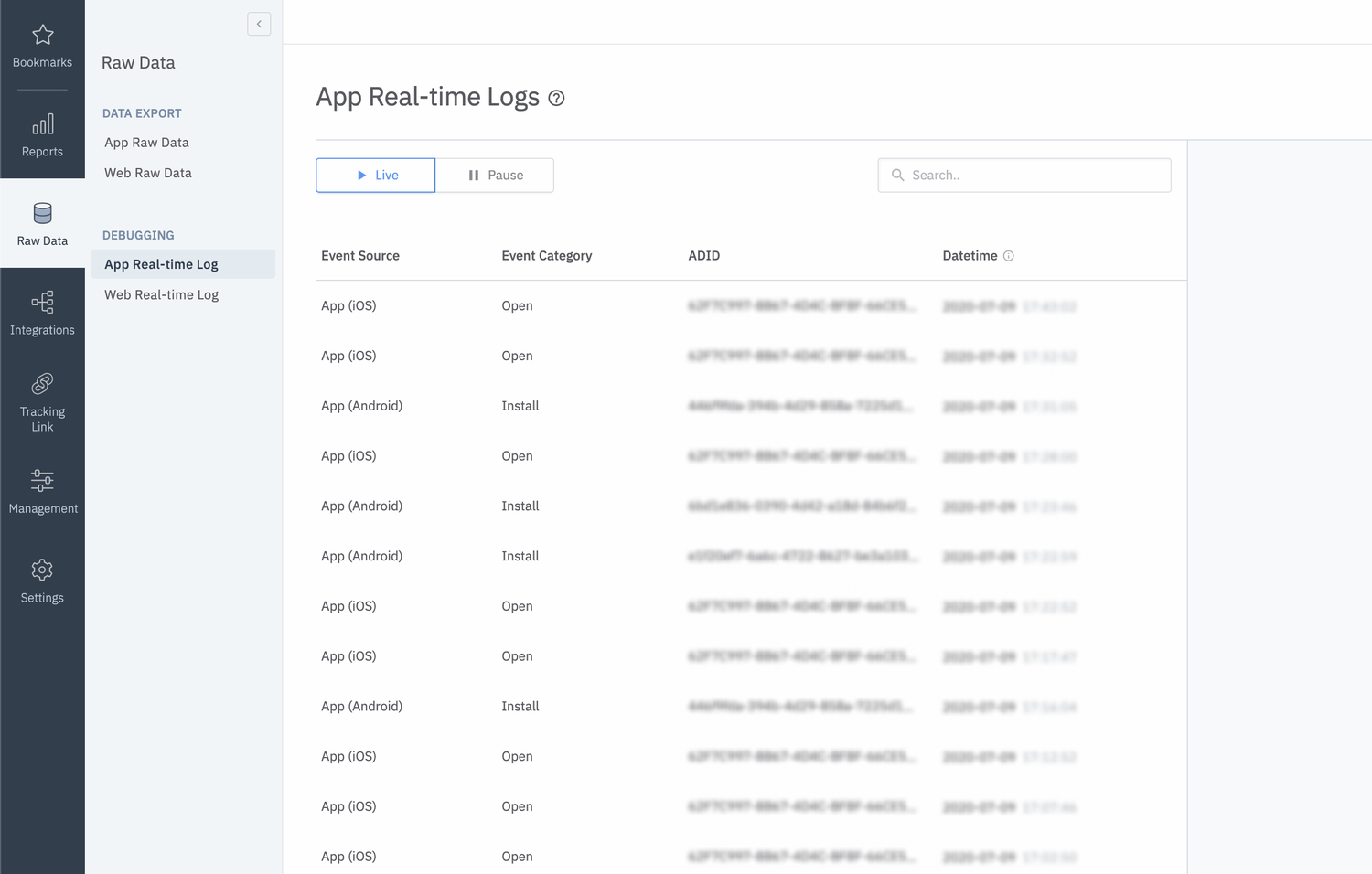
2. Navigate to **\[Raw Data]>\[App Real-time Logs]** in the Airbridge dashboard.
3. Enter the [Google Advertising ID](https://developer.android.com/training/articles/ad-id) (GAID) of the test device to find it in the logs.
It may take up to 5 minutes for the logs to be visible in the dashboard.
**Attention**
It may take up to 5 minutes for the logs to appear on the \[Real-time Logs] page.
#### Using the logs
Navigate to **\[AB180]>\[Airbridge Settings]** in Unity and check the Log Level.
## Deep Linking
### Set up dashboard
Refer to the guides below to set up the Airbridge dashboard for deep linking.
* [Dashboard setup guide for iOS](/en/developers/deprecated-ios-sdk-v1#set-up-dashboard)
* [Dashboard setup guide for Android](/en/developers/deprecated-android-sdk-v2#set-up-dashboard)
### Set up project
#### iOS
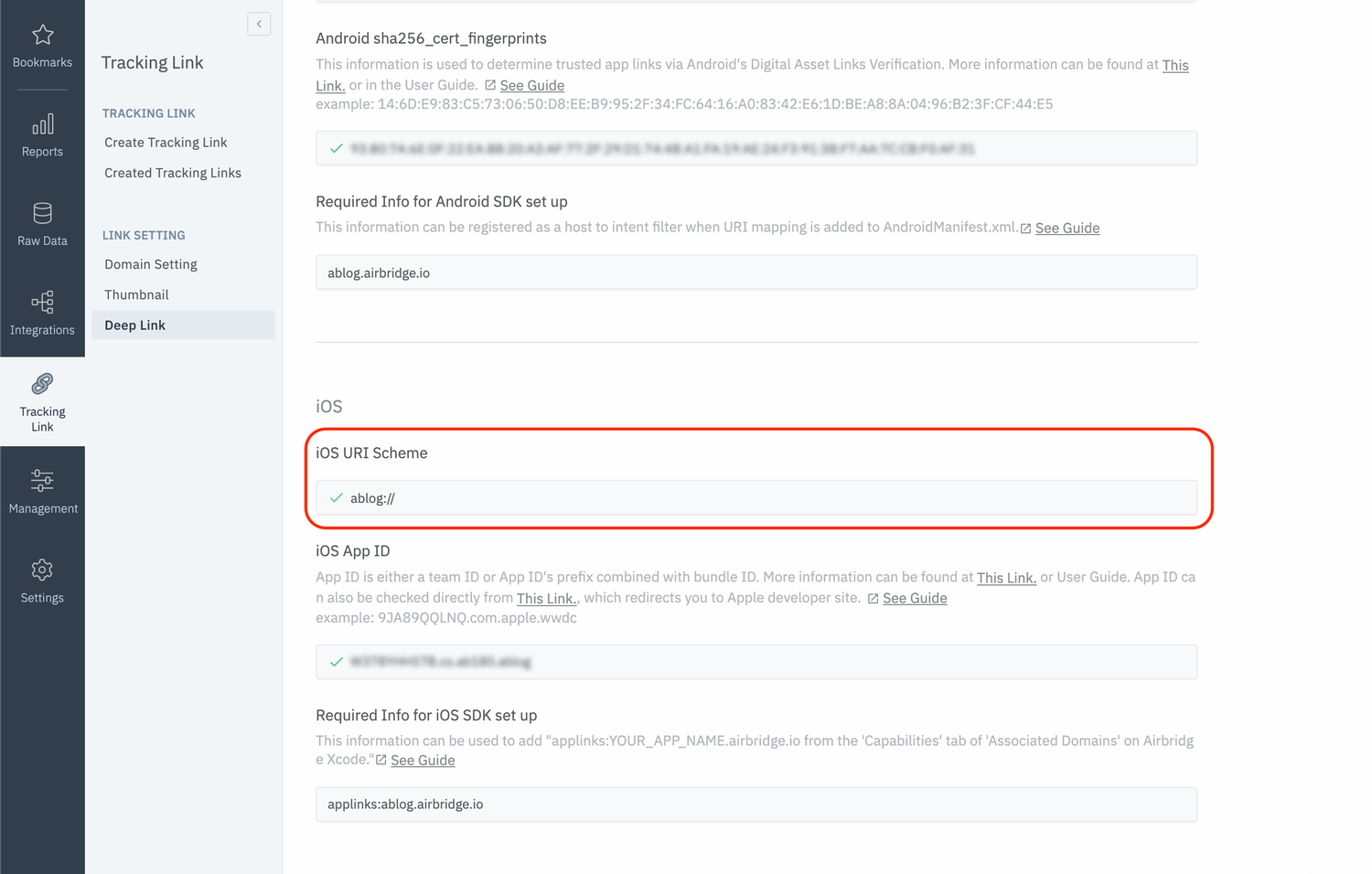
Navigate to **\[AB180]>\[Airbridge Settings]** in Unity and enter the **iOS URI Scheme**, which can be found on the **\[Tracking Link]>\[Deep Links]** page in the Airbridge dashboard.
#### Android
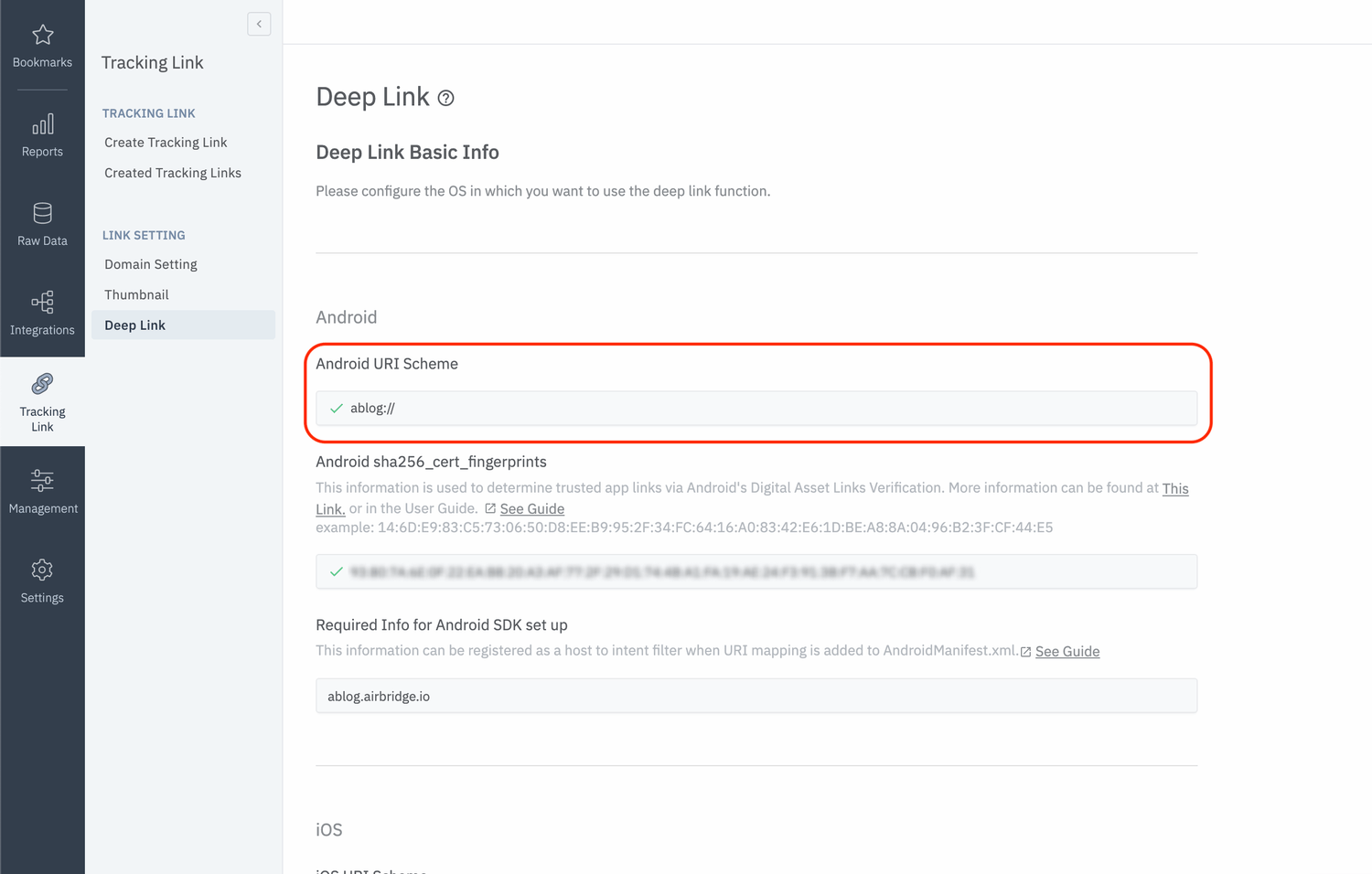
Navigate to **\[AB180]>\[Airbridge Settings]** in Unity and enter the **Android URI Scheme**, which can be found on the **\[Tracking Link]>\[Deep Links]** page in the Airbridge dashboard.
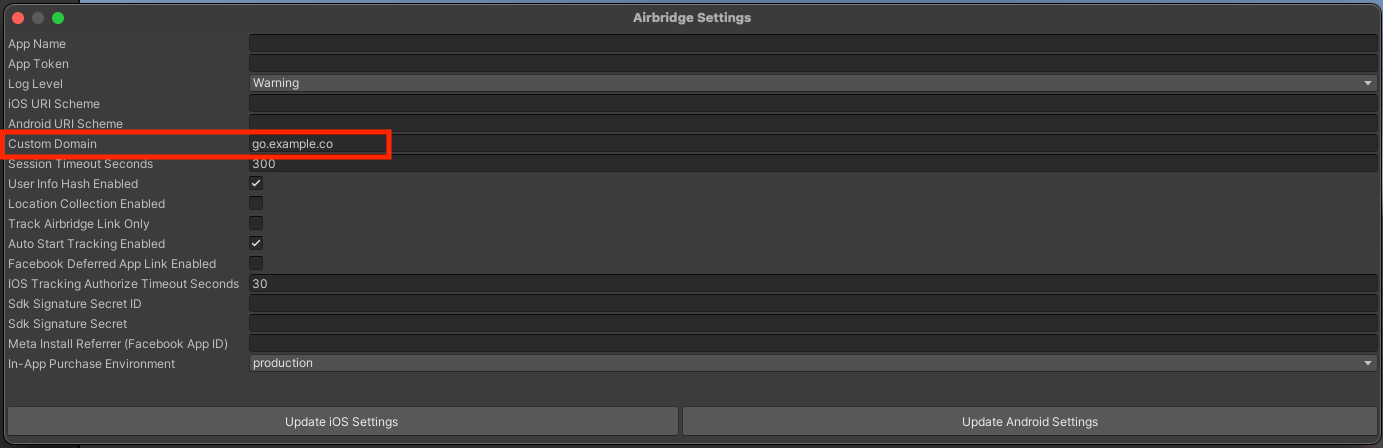
#### Set up a custom domain
When generating tracking links in the Airbridge dashboard, you can use tracking links in the form of `deeplink.page` or `abr.ge`. However, for branding purposes and to improve click-through rates (CTR), you can use customized URLs as tracking links, such as `go.my_company.com/abcd`, by following the steps below.
1. Set up the custom domain in the Airbridge dashboard by referring to this [user guide](/en/guides/custom-domain).
2. Navigate to **\[AB180]>\[Airbridge Settings]** in Unity and enter the custom domain.
#### Set up deep link callback
To receive the deep link data clicked by the user, register the object name using `SetDeeplinkCallback` to receive messages like below.
```c# lines theme={"theme":{"light":"github-dark-dimmed","dark":"github-dark-dimmed"}}
private void Awake()
{
AirbridgeUnity.SetDeeplinkCallback("AirbridgeManager");
}
```
Airbridge will receive the deep link URL once `SetDeeplinkCallback` is set as above.
```c# lines theme={"theme":{"light":"github-dark-dimmed","dark":"github-dark-dimmed"}}
using UnityEngine;
public class AirbridgeManager : MonoBehaviour
{
private void Awake() {
AirbridgeUnity.SetDeeplinkCallback("AirbridgeManager");
}
// Method will call by Airbridge when deeplink detected
private void OnTrackingLinkResponse(string url)
{
}
}
```
The Airbridge Unity SDK uses Unity's `UnitySendMessage` method to forward deep link information.
### Deep link testing
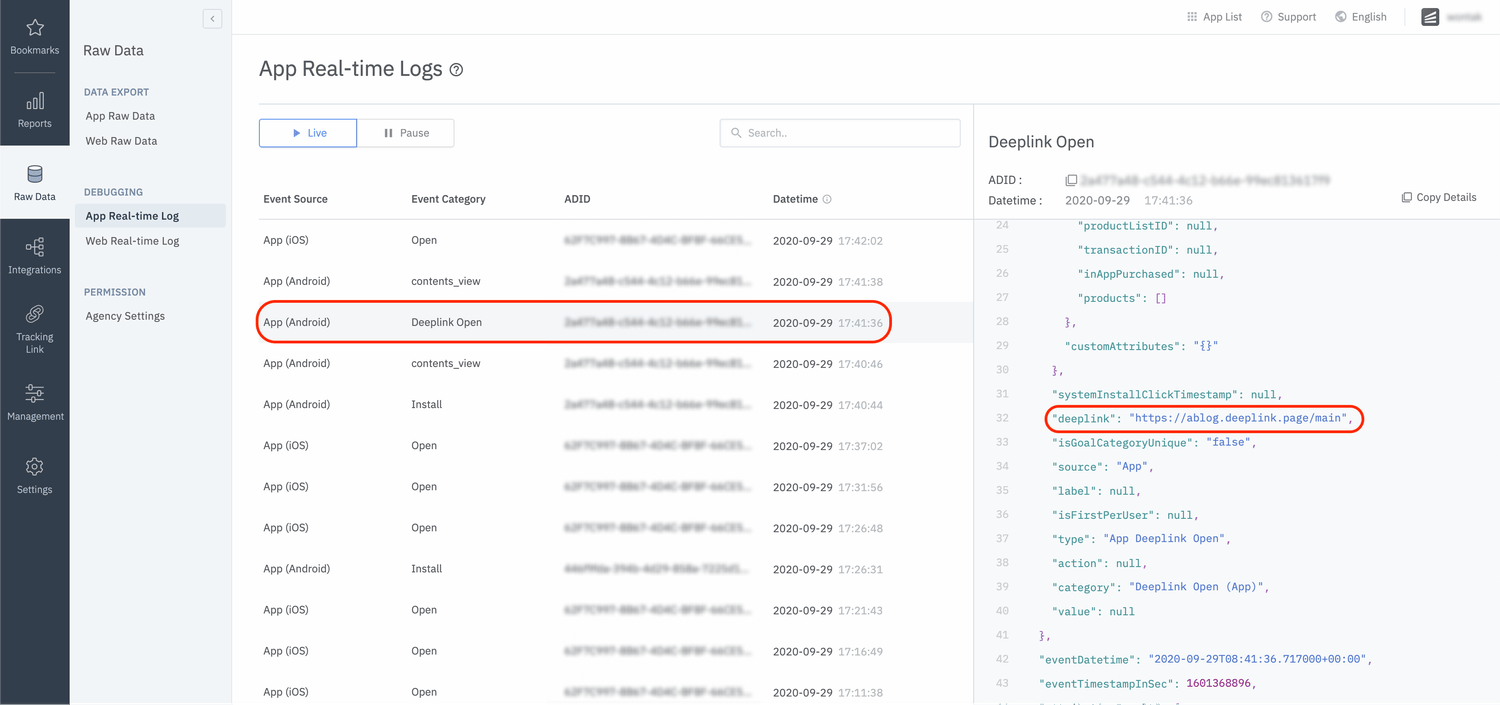
Click on your URI scheme to test if your deep link has been properly set up in the Airbridge SDK.
* `YOUR_APP_URI_SCHEME://`
When the deep link setup is successful, you will see the Deeplink Open event on the **\[Raw Data]>\[App Real-time Log]** page in the Airbridge dashboard, like in the following image.
## User Data
### User identifier
To measure the fragmented contributions of users between web and app, Airbridge collects the following user identifier information.
* User Email: Email address
* User Phone: Phone number
* User ID: Unique User ID (The ID value that specifies the user must be the same in both web and mobile)
* User Alias: Identifiers that can represent users (e.g. loyalty program ID, affiliate integrated ID, etc)
The user's email and phone numbers are hashed (SHA256) by default and then sent to servers.
You can set the user identifier as below for the SDK.
```c# lines theme={"theme":{"light":"github-dark-dimmed","dark":"github-dark-dimmed"}}
Dictionary alias = new Dictionary();
AirbridgeUser user = new AirbridgeUser();
user.SetId("personID");
user.SetEmail("persondoe@airbridge.io");
user.SetPhoneNumber("1(123)123-1234");
user.SetAlias("key", "value");
AirbridgeUnity.SetUser(user);
```
| Name | Description | Limitations |
| - | - | - |
| Id | User ID | - |
| Email | User email | Hashed by default (SHA256, can be disabled) |
| PhoneNumber | User phone number | Hashed by default (SHA256, can be disabled) |
| Alias | User alias | - Maximum 10 aliases - `key`type is String, maximum 128 characters - `key`must satisfy `^[a-z_][a-z0-9_]*$`regex - `value`type is String, maximum 128 characters |
Once the user identifier has been configured, all events will be forwarded with the corresponding identity information.
**Attention**
The user identifier properties can be reset or overwritten through user events.
### User Attribute
Additional user attributes can be used for more accurate Multi-Touch Attribution (MTA) analyses, additional internal data analyses, and linking third-party solutions.
```c# lines theme={"theme":{"light":"github-dark-dimmed","dark":"github-dark-dimmed"}}
Dictionary attrs = new Dictionary();
AirbridgeUser user = new AirbridgeUser();
user.SetAttributes("key", "value");
AirbridgeUnity.SetUser(user);
```
| Name | Description | Limitations |
| - | - | - |
| Attributes | User attribute | - Maximum 100 attributes - "key" type is string, maximum 128 characters - "key" must satisfy `^[a-z_][a-z0-9_]*$`regex - "value" type is primitive or string - Maximum 1024 characters when "value" is string |
**Attention**
The user identifier properties can be reset or overwritten through user events.
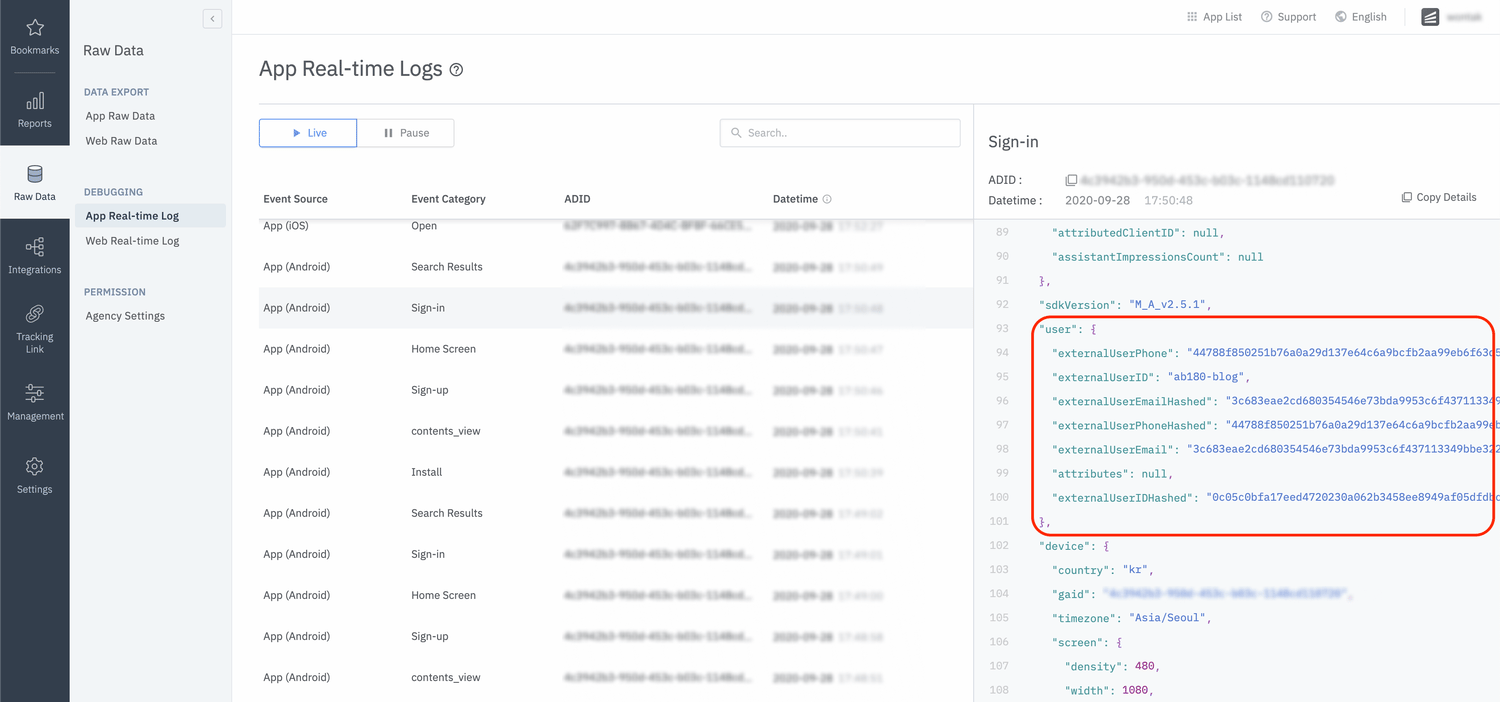
### Testing
Make sure that your user information settings are being properly sent through the SDK.
1. Configure user identifier information.
2. Send an event using the SDK.
3. Click the event at "Airbridge dashboard → Raw Data → App Real-time Logs"
4. Check if the user information is correctly sent under the `user`block.
## Device Setup
### Setup Device Alias
Setup a device alias through the Airbridge SDK. The alias will be sustained even after the app closes, unless otherwise deleted.
```c# lines theme={"theme":{"light":"github-dark-dimmed","dark":"github-dark-dimmed"}}
AirbridgeUnity.SetDeviceAlias("ADD_YOUR_KEY", "AND_YOUR_VALUE");
AirbridgeUnity.RemoveDeviceAlias("DELETE_THIS_KEY");
AirbridgeUnity.ClearDeviceAlias();
```
| SetDeviceAlias(string key, string value) | Add the key value pair to the device identifier. |
| - | - |
| RemoveDeviceAlias(string key) | Delete the corresponding device alias. |
| ClearDeviceAlias() | Delete all device aliases. |
## Event Setup
When important user actions occur, in-app events can be sent to measure performance by channel.
All event parameters are optional. However, more information about the event will help provide a more accurate analysis.
All events called by the Airbridge SDK can be sent with the following fields.
| Name | Type | Description |
| - | - | - |
| Event Category | String | Name of the event **Required** |
| Event Action | String | Event attribute 1 |
| Event Label | String | Event attribute 2 |
| Event Value | Float | Event attribute value |
| Event Custom Attributes | Dictionary\ | Custom attributes |
| Event Semantic Attributes | Dictionary\ | Semantic attributes |
### Standard Events
Send standard user events with the SDK.
`action`, `label`, `value`, `attributes` can also be used when sending standard events.
#### Sign Up
```c# lines theme={"theme":{"light":"github-dark-dimmed","dark":"github-dark-dimmed"}}
Dictionary alias = new Dictionary();
AirbridgeUser user = new AirbridgeUser();
user.SetId(UserId);
user.SetEmail(Email);
user.SetPhoneNumber(Phone);
user.SetAlias(alias);
AirbridgeUnity.SetUser(user);
AirbridgeEvent @event = new AirbridgeEvent(Airbridge.Constants.CATEGORY.SIGN_UP);
AirbridgeUnity.TrackEvent(@event);
```
#### Sign In
```c# lines theme={"theme":{"light":"github-dark-dimmed","dark":"github-dark-dimmed"}}
Dictionary alias = new Dictionary();
AirbridgeUser user = new AirbridgeUser();
user.SetId(UserId);
user.SetEmail(Email);
user.SetPhoneNumber(Phone);
user.SetAlias(alias);
AirbridgeUnity.SetUser(user);
AirbridgeEvent @event = new AirbridgeEvent(Airbridge.Constants.CATEGORY.SIGN_IN);
AirbridgeUnity.TrackEvent(@event);
```
#### Sign Out
```c# lines theme={"theme":{"light":"github-dark-dimmed","dark":"github-dark-dimmed"}}
AirbridgeEvent @event = new AirbridgeEvent(Airbridge.Constants.CATEGORY.SIGN_OUT);
AirbridgeUnity.TrackEvent(@event);
AirbridgeUnity.ExpireUser();
```
**Attention**
All user identifier properties will disappear after `sign out` is called.
```c# lines theme={"theme":{"light":"github-dark-dimmed","dark":"github-dark-dimmed"}}
Airbridge.Ecommerce.Product cocacola = new Airbridge.Ecommerce.Product();
cocacola.SetId("beverage_1");
cocacola.SetName("Coca Cola");
cocacola.SetPrice(1.25);
cocacola.SetCurrency("USD");
cocacola.SetQuantity(1);
cocacola.SetPosition(0);
```
#### View Home Screen
```c# lines theme={"theme":{"light":"github-dark-dimmed","dark":"github-dark-dimmed"}}
AirbridgeEvent @event = new AirbridgeEvent(Airbridge.Constants.CATEGORY.VIEW_HOME);
AirbridgeUnity.TrackEvent(@event);
```
#### View Search Result
```c# lines theme={"theme":{"light":"github-dark-dimmed","dark":"github-dark-dimmed"}}
List beverages = new List();
Airbridge.Ecommerce.Product cocacola = new Airbridge.Ecommerce.Product();
cocacola.SetId("beverage_1");
cocacola.SetName("Coca Cola");
cocacola.SetPrice(1.25);
cocacola.SetCurrency("USD");
cocacola.SetQuantity(1);
cocacola.SetPosition(0);
beverages.Add(cocacola);
Airbridge.Ecommerce.Product fanta = new Airbridge.Ecommerce.Product();
fanta.SetId("beverage_2");
fanta.SetName("Fanta");
fanta.SetPrice(10.99);
fanta.SetCurrency("USD");
fanta.SetQuantity(1);
fanta.SetPosition(1);
beverages.Add(fanta);
AirbridgeEvent @event = new AirbridgeEvent(Airbridge.Constants.CATEGORY.VIEW_SEARCH_RESULT);
@event.SetQuery("SELECT * FROM beverages");
@event.SetProducts(beverages.ToArray());
@event.SetValue(12.24);
@event.SetCurrency("USD");
AirbridgeUnity.TrackEvent(@event);
```
#### View Product List
```c# lines theme={"theme":{"light":"github-dark-dimmed","dark":"github-dark-dimmed"}}
List beverages = new List();
Airbridge.Ecommerce.Product cocacola = new Airbridge.Ecommerce.Product();
cocacola.SetId("beverage_1");
cocacola.SetName("Coca Cola");
cocacola.SetPrice(1.25);
cocacola.SetCurrency("USD");
cocacola.SetQuantity(1);
cocacola.SetPosition(0);
beverages.Add(cocacola);
Airbridge.Ecommerce.Product fanta = new Airbridge.Ecommerce.Product();
fanta.SetId("beverage_3");
fanta.SetName("Fanta");
fanta.SetPrice(10.99);
fanta.SetCurrency("USD");
fanta.SetQuantity(1);
fanta.SetPosition(2);
beverages.Add(fanta);
AirbridgeEvent @event = new AirbridgeEvent(Airbridge.Constants.CATEGORY.VIEW_PRODUCT_LIST);
@event.SetProductListId("beverage_list_0");
@event.SetProducts(beverages.ToArray());
@event.SetValue(12.24);
@event.SetCurrency("USD");
AirbridgeUnity.TrackEvent(@event);
```
#### View Product Detail
```c# lines theme={"theme":{"light":"github-dark-dimmed","dark":"github-dark-dimmed"}}
Airbridge.Ecommerce.Product cocacola = new Airbridge.Ecommerce.Product();
cocacola.SetId("beverage_1");
cocacola.SetName("Coca Cola");
cocacola.SetPrice(1.25);
cocacola.SetCurrency("USD");
cocacola.SetQuantity(1);
cocacola.SetPosition(0);
AirbridgeEvent @event = new AirbridgeEvent(Airbridge.Constants.CATEGORY.VIEW_PRODUCT_DETAILS);
@event.SetProducts(cocacola);
@event.SetCurrency("USD");
AirbridgeUnity.TrackEvent(@event);
```
#### Add To Cart
```c# lines theme={"theme":{"light":"github-dark-dimmed","dark":"github-dark-dimmed"}}
Airbridge.Ecommerce.Product cocacola = new Airbridge.Ecommerce.Product();
cocacola.SetId("beverage_1");
cocacola.SetName("Coca Cola");
cocacola.SetPrice(1.25);
cocacola.SetCurrency("USD");
cocacola.SetQuantity(1);
cocacola.SetPosition(0);
AirbridgeEvent @event = new AirbridgeEvent(Airbridge.Constants.CATEGORY.ADDED_TO_CART);
@event.SetProducts(cocacola);
@event.SetCurrency("USD");
@event.SetValue(1.25);
AirbridgeUnity.TrackEvent(@event);
```
#### Purchase
```c# lines theme={"theme":{"light":"github-dark-dimmed","dark":"github-dark-dimmed"}}
List beverages = new List();
Airbridge.Ecommerce.Product cocacola = new Airbridge.Ecommerce.Product();
cocacola.SetId("beverage_1");
cocacola.SetName("Coca Cola");
cocacola.SetPrice(1.25);
cocacola.SetCurrency("USD");
cocacola.SetQuantity(1);
cocacola.SetPosition(0);
beverages.Add(cocacola);
Airbridge.Ecommerce.Product fanta = new Airbridge.Ecommerce.Product();
fanta.SetId("beverage_3");
fanta.SetName("Fanta");
fanta.SetPrice(10.99f);
fanta.SetCurrency("USD");
fanta.SetQuantity(1);
fanta.SetPosition(2);
beverages.Add(fanta);
AirbridgeEvent @event = new AirbridgeEvent(Airbridge.Constants.CATEGORY.ORDER_COMPLETED);
@event.SetTransactionId("transaction_123");
@event.SetProducts(beverages.ToArray());
@event.SetCurrency("USD");
@event.SetInAppPurchased(true);
@event.SetValue(1.25);
AirbridgeUnity.TrackEvent(@event);
```
### Custom Events
Send custom events with the SDK.
```c# lines theme={"theme":{"light":"github-dark-dimmed","dark":"github-dark-dimmed"}}
AirbridgeEvent @event = new AirbridgeEvent("category");
@event.SetAction("action");
@event.SetLabel("label");
@event.SetValue(9999);
@event.AddCustomAttribute("custom_key", "value");
@event.AddSemanticAttribute("query", "query_123");
AirbridgeUnity.TrackEvent(@event);
```
To configure and deliver `Semantic Attributes` directly, please refer to this [guide](/en/developers/event-structure#semantic-attributes).
### Verify Event Transmission
Make sure that the events are being properly sent through the SDK.
1. Send an event with the SDK.
2. Check if the event shows up at "Airbridge dashboard → Raw Data → App Real-time Logs".
## Advanced Setup
***
### SDK Signature Setup
Protection against SDK spoofing is possible once you input the "SDK Signature Secret ID" and "SDK Signature Secret" values in the "AB180 -> Airbridge Settings menu".
The SDK Signature Credentials are required for the SDK Signature setup. Refer to this [article](/en/guides/sdk-signature#configuring-the-sdk-signature-credentials) to learn how to create them.
### Hash User Identifier
Email addresses and phone numbers are hashed by default. (SHA256)
Settings can be changed by configuring the "User Info Hash Enabled" field at "AB180 → Airbridge Settings".
**Attention**
Other security measures must be taken internally when sensitive personal information such as "User Email" and "User Phone" is being handled.
### Session Timeout Setup
The Airbridge Unity SDK does not send app open events again if the user reopens the app within the time configured at the "Session Timeout Seconds" field at "AB180 → Airbridge Settings".
Session timeout is in milliseconds and must range between 0 and 604800000 (7 days).
The default value is 1000 \* 60 \* 5 (5 minutes).
### Setting up Opt-In
This feature is useful for conducting data collection and transmission in compliance with [GDPR](https://gdpr-info.eu/) or [CCPA](https://oag.ca.gov/privacy/ccpa).
You can explicitly start data collection and transmission by navigating to `AB180` > `Airbridge Settings` in the top menu bar of Unity, and selecting the `Auto Start Tracking Enabled` field.
When this feature is disabled, the following function must be explicitly called for proper data collection.
```c# lines theme={"theme":{"light":"github-dark-dimmed","dark":"github-dark-dimmed"}}
AirbridgeUnity.StartTracking();
```
### Setting up Opt-Out
**Attention**
The instructions below are optional. Proceed only if necessary.
Opt-Out is a policy where user information is used until the user refuses.
After setting `setAutoStartTrackingEnabled` to `true`, call the `stopTracking` function at the point where events cannot be collected. From the point when the `stopTracking` function is called, events are not collected.
```c# C# lines theme={"theme":{"light":"github-dark-dimmed","dark":"github-dark-dimmed"}}
AirbridgeUnity.stopTracking();
```
### Track Airbridge Link Only
If it is difficult to see the performance of re-engagement through Airbridge at a glance due to too many deep link actions within the advertiser's app, "Track Airbridge Link Only" field at "AB180 → Airbridge Settings" can be used to only filter results received through Airbridge deep links.
This option will measure deep links only if the following requirements are met.
* The app is opened through a `airbridge.io`link
* The app is opened through a `deeplink.page`link
* The app is opened through a [Custom Domain Setup](/en/developers/deprecated-android-sdk-v2#custom-domain-setup) that is registered on the Airbridge dashboard
* The app is opened through a link that contains `airbridge_referrer`information in the query
### Location Collection (Android only)
Airbridge Unity SDK can collect user location information through the "Location Collection Enabled" field at "AB180 → Airbridge Settings"
**Attention**
Location information must be collected for legal purposes through legal methods.
### Facebook Deferred App Links
You can receive Facebook Deferred App Links from the Airbridge Unity SDK through by configuring "Facebook Deferred App Link Enabled" at "AB180 → Airbridge Settings".
**Attention**
The Facebook SDK setting must be installed in advance to use this feature.
See - [https://developers.facebook.com/docs/unity/](https://developers.facebook.com/docs/unity/)
### Tracking Authorize Timeout (iOS only)
When the [AppTrackingTransparency.framework](https://developer.apple.com/documentation/apptrackingtransparency) is used to present an app-tracking authorization request to the user, IDFA will not be collected when the install event occurs because the install event occurs before the selection.
The "iOS Tracking Authorize Timeout Seconds" field at "AB180 → Airbridge Settings" allows you to delay the transmission of installation events so that the IDFA value may be included.
### Meta install referrer Collection Setup
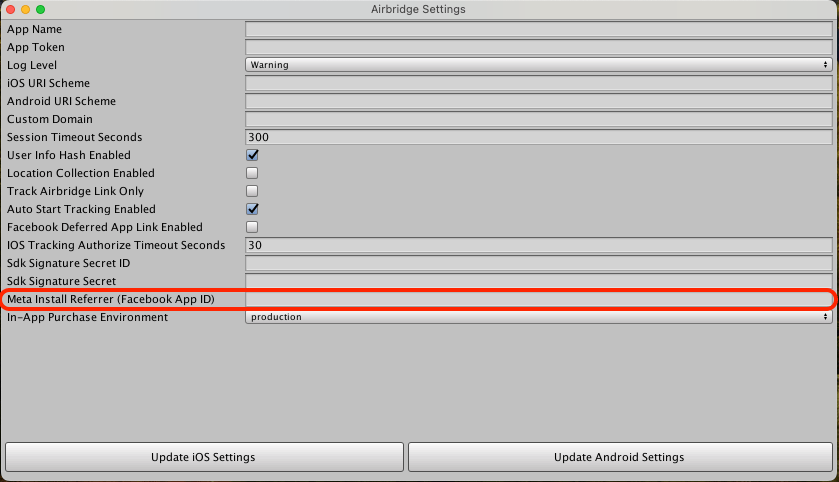
Meta install referrer (MIR) Collection Setup supported by Airbridge Unity SDK in version 1.16.1 or higher. To collect data, set as below.
You can pass your Facebook App ID through by configuring "Meta Install Referrer (Facebook App ID)" at "AB180 → Airbridge Settings".
After adding the settings, you must enter the decryption key to see decrypted MIR. Refer to this [article](/en/guides/meta-business-google-play-install-referrer) to learn about MIR.
### Uninstall Tracking
This feature is available for only Unity SDK v1.9.0+.
###### Reference
* [Android Uninstall Tracking](/en/developers/uninstall-tracking-deprecated-android-sdk-v2)
* [iOS Uninstall Tracking](/en/developers/uninstall-tracking-deprecated-ios-sdk-v1)
###### Android Uninstall Tracking
**1. Setup Firebase Cloud Messaging**
Please refer to the official [Firebase Cloud Messaging documentation](https://firebase.google.com/docs/cloud-messaging/unity/client) for basic app setup.
**2. Forward Firebase Push Token**
Forward the push token to Airbridge using the `RegisterPushToken` method.
```c# lines theme={"theme":{"light":"github-dark-dimmed","dark":"github-dark-dimmed"}}
public void Start() {
Firebase.Messaging.FirebaseMessaging.TokenReceived += OnTokenReceived;
Firebase.Messaging.FirebaseMessaging.MessageReceived += OnMessageReceived;
}
public void OnTokenReceived(object sender, Firebase.Messaging.TokenReceivedEventArgs token) {
#if UNITY_ANDROID
AirbridgeUnity.RegisterPushToken(token.Token);
#endif
}
// Make sure the notification is not shown on the device if the remote message value is airbridge-uninstall-tracking.
public void OnMessageReceived(object sender, Firebase.Messaging.MessageReceivedEventArgs e) {
if (e.Message.Data.ContainsKey("airbridge-uninstall-tracking")) return;
...
}
```
###### iOS Uninstall Tracking
**1. Setup Apple Push Notification Service**
Please refer to the official [Unity Mobile Notifications Package documentation](https://docs.unity3d.com/Packages/com.unity.mobile.notifications@2.1/manual/index.html) and install the package.
**2. Forward Device Token**
Forward the device token to Airbridge using the `RegisterPushToken` method.
```c# lines theme={"theme":{"light":"github-dark-dimmed","dark":"github-dark-dimmed"}}
void Start()
{
#if UNITY_IOS
StartCoroutine(RequestAuthorization());
#endif
}
#if UNITY_IOS
IEnumerator RequestAuthorization()
{
var authorizationOption = AuthorizationOption.Alert | AuthorizationOption.Badge;
using (var req = new AuthorizationRequest(authorizationOption, true))
{
while (!req.IsFinished)
{
yield return null;
};
if (req.Granted && req.DeviceToken != "")
{
AirbridgeUnity.RegisterPushToken(req.DeviceToken);
}
}
}
#endif
```
## Hybrid App Setup
***
Additional events such as app installs, app open,s and deep link opens can't be tracked with just the web SDK. The following simple setup allows in-app events to be called for a hybrid app.
```c# lines theme={"theme":{"light":"github-dark-dimmed","dark":"github-dark-dimmed"}}
AirbridgeWebInterface webInterface;
webInterface = AirbridgeUnity.CreateWebInterface(
"YOUR_WEB_TOKEN", // web token
(msg) => $@"..." // post command function
);
```
`AirbridgeUnity.CreateWebInterface` allows you to control the web interface.
Please refer to the [Unity Hybrid App Integration Guide](https://airbridge.readme.io/v1.1-en/page/unity-hybrid-app-integration-guide) for more information.
**Attention**
Hybrid app setup is available for Airbridge Unity SDK v1.9.3+.
## Sample App
[Unity Sample App](https://github.com/ab180/airbridge-unity-example)
## Migration Guide
Before updating the SDK, please review the following information.
#### 1.14.1
With support for the privacy manifest, the Static Library has been changed to a Dynamic Library.
If you are installing using EDM4U, click on \[Assets]>\[External Dependency Manager]>\[iOS Resolver]>\[Settings] at the top of Unity to proceed with iOS builds after unchecking the 'Link frameworks statically' checkbox in the Podfile Configurations section of the iOS Resolver Settings window displayed.
This documentation is built and hosted on [Mintlify](https://mintlify.com), a developer documentation platform.
 Then, go to Unity, navigate to **\[AB180]>\[Airbridge Settings]** in the top menu bar, and paste the App Name and App Token into the respective fields.
#### Initialization
The Airbridge Unity SDK does not require initialization. However, in particular cases, a migration process may be required per platform.
#### Set up Application Entry Point
Then, go to Unity, navigate to **\[AB180]>\[Airbridge Settings]** in the top menu bar, and paste the App Name and App Token into the respective fields.
#### Initialization
The Airbridge Unity SDK does not require initialization. However, in particular cases, a migration process may be required per platform.
#### Set up Application Entry Point
 When using the Unity version 2023.1 or later, you can navigate to **\[Android Player Settings]>\[Other Settings]>\[Configuration]>\[Application Entry Point]** and set the "Application Entry Point" to **Activity**, **GameActivity**, or **Activity and Game Activity**. Refer to the information below to learn about the additional configurations that are required depending on how the "Application Entry Point" is set.
 1. Install and open the app on a test device.
2. Navigate to **\[Raw Data]>\[App Real-time Logs]** in the Airbridge dashboard.
3. Enter the [Google Advertising ID](https://developer.android.com/training/articles/ad-id) (GAID) of the test device to find it in the logs.
It may take up to 5 minutes for the logs to be visible in the dashboard.
1. Install and open the app on a test device.
2. Navigate to **\[Raw Data]>\[App Real-time Logs]** in the Airbridge dashboard.
3. Enter the [Google Advertising ID](https://developer.android.com/training/articles/ad-id) (GAID) of the test device to find it in the logs.
It may take up to 5 minutes for the logs to be visible in the dashboard.
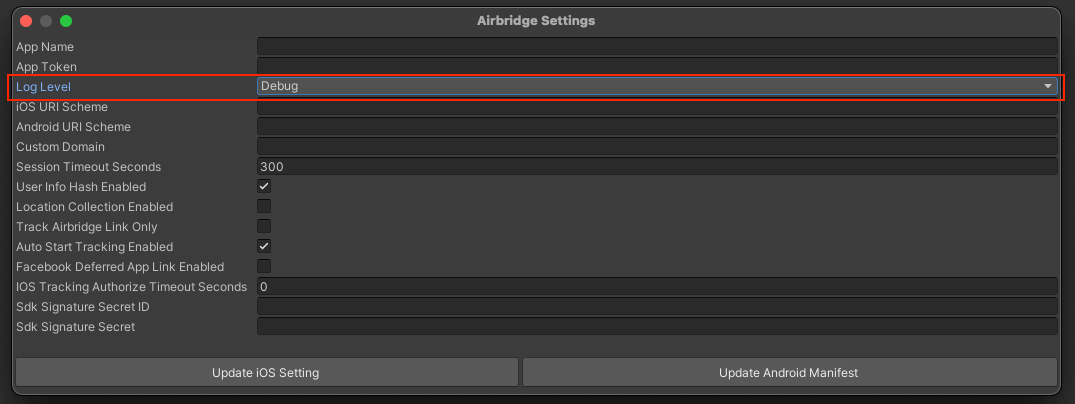 Navigate to **\[AB180]>\[Airbridge Settings]** in Unity and check the Log Level.
## Deep Linking
### Set up dashboard
Refer to the guides below to set up the Airbridge dashboard for deep linking.
* [Dashboard setup guide for iOS](/en/developers/deprecated-ios-sdk-v1#set-up-dashboard)
* [Dashboard setup guide for Android](/en/developers/deprecated-android-sdk-v2#set-up-dashboard)
### Set up project
#### iOS
Navigate to **\[AB180]>\[Airbridge Settings]** in Unity and enter the **iOS URI Scheme**, which can be found on the **\[Tracking Link]>\[Deep Links]** page in the Airbridge dashboard.
Navigate to **\[AB180]>\[Airbridge Settings]** in Unity and check the Log Level.
## Deep Linking
### Set up dashboard
Refer to the guides below to set up the Airbridge dashboard for deep linking.
* [Dashboard setup guide for iOS](/en/developers/deprecated-ios-sdk-v1#set-up-dashboard)
* [Dashboard setup guide for Android](/en/developers/deprecated-android-sdk-v2#set-up-dashboard)
### Set up project
#### iOS
Navigate to **\[AB180]>\[Airbridge Settings]** in Unity and enter the **iOS URI Scheme**, which can be found on the **\[Tracking Link]>\[Deep Links]** page in the Airbridge dashboard.
 #### Android
Navigate to **\[AB180]>\[Airbridge Settings]** in Unity and enter the **Android URI Scheme**, which can be found on the **\[Tracking Link]>\[Deep Links]** page in the Airbridge dashboard.
#### Android
Navigate to **\[AB180]>\[Airbridge Settings]** in Unity and enter the **Android URI Scheme**, which can be found on the **\[Tracking Link]>\[Deep Links]** page in the Airbridge dashboard.
 #### Set up a custom domain
When generating tracking links in the Airbridge dashboard, you can use tracking links in the form of `deeplink.page` or `abr.ge`. However, for branding purposes and to improve click-through rates (CTR), you can use customized URLs as tracking links, such as `go.my_company.com/abcd`, by following the steps below.
1. Set up the custom domain in the Airbridge dashboard by referring to this [user guide](/en/guides/custom-domain).
2. Navigate to **\[AB180]>\[Airbridge Settings]** in Unity and enter the custom domain.
#### Set up a custom domain
When generating tracking links in the Airbridge dashboard, you can use tracking links in the form of `deeplink.page` or `abr.ge`. However, for branding purposes and to improve click-through rates (CTR), you can use customized URLs as tracking links, such as `go.my_company.com/abcd`, by following the steps below.
1. Set up the custom domain in the Airbridge dashboard by referring to this [user guide](/en/guides/custom-domain).
2. Navigate to **\[AB180]>\[Airbridge Settings]** in Unity and enter the custom domain.
 #### Set up deep link callback
To receive the deep link data clicked by the user, register the object name using `SetDeeplinkCallback` to receive messages like below.
```c# lines theme={"theme":{"light":"github-dark-dimmed","dark":"github-dark-dimmed"}}
private void Awake()
{
AirbridgeUnity.SetDeeplinkCallback("AirbridgeManager");
}
```
Airbridge will receive the deep link URL once `SetDeeplinkCallback` is set as above.
```c# lines theme={"theme":{"light":"github-dark-dimmed","dark":"github-dark-dimmed"}}
using UnityEngine;
public class AirbridgeManager : MonoBehaviour
{
private void Awake() {
AirbridgeUnity.SetDeeplinkCallback("AirbridgeManager");
}
// Method will call by Airbridge when deeplink detected
private void OnTrackingLinkResponse(string url)
{
}
}
```
#### Set up deep link callback
To receive the deep link data clicked by the user, register the object name using `SetDeeplinkCallback` to receive messages like below.
```c# lines theme={"theme":{"light":"github-dark-dimmed","dark":"github-dark-dimmed"}}
private void Awake()
{
AirbridgeUnity.SetDeeplinkCallback("AirbridgeManager");
}
```
Airbridge will receive the deep link URL once `SetDeeplinkCallback` is set as above.
```c# lines theme={"theme":{"light":"github-dark-dimmed","dark":"github-dark-dimmed"}}
using UnityEngine;
public class AirbridgeManager : MonoBehaviour
{
private void Awake() {
AirbridgeUnity.SetDeeplinkCallback("AirbridgeManager");
}
// Method will call by Airbridge when deeplink detected
private void OnTrackingLinkResponse(string url)
{
}
}
```
 ## User Data
### User identifier
To measure the fragmented contributions of users between web and app, Airbridge collects the following user identifier information.
* User Email: Email address
* User Phone: Phone number
* User ID: Unique User ID (The ID value that specifies the user must be the same in both web and mobile)
* User Alias: Identifiers that can represent users (e.g. loyalty program ID, affiliate integrated ID, etc)
## User Data
### User identifier
To measure the fragmented contributions of users between web and app, Airbridge collects the following user identifier information.
* User Email: Email address
* User Phone: Phone number
* User ID: Unique User ID (The ID value that specifies the user must be the same in both web and mobile)
* User Alias: Identifiers that can represent users (e.g. loyalty program ID, affiliate integrated ID, etc)
 ## Device Setup
### Setup Device Alias
Setup a device alias through the Airbridge SDK. The alias will be sustained even after the app closes, unless otherwise deleted.
```c# lines theme={"theme":{"light":"github-dark-dimmed","dark":"github-dark-dimmed"}}
AirbridgeUnity.SetDeviceAlias("ADD_YOUR_KEY", "AND_YOUR_VALUE");
AirbridgeUnity.RemoveDeviceAlias("DELETE_THIS_KEY");
AirbridgeUnity.ClearDeviceAlias();
```
| SetDeviceAlias(string key, string value) | Add the key value pair to the device identifier. |
| - | - |
| RemoveDeviceAlias(string key) | Delete the corresponding device alias. |
| ClearDeviceAlias() | Delete all device aliases. |
## Event Setup
When important user actions occur, in-app events can be sent to measure performance by channel.
All event parameters are optional. However, more information about the event will help provide a more accurate analysis.
All events called by the Airbridge SDK can be sent with the following fields.
| Name | Type | Description |
| - | - | - |
| Event Category | String | Name of the event **Required** |
| Event Action | String | Event attribute 1 |
| Event Label | String | Event attribute 2 |
| Event Value | Float | Event attribute value |
| Event Custom Attributes | Dictionary\
## Device Setup
### Setup Device Alias
Setup a device alias through the Airbridge SDK. The alias will be sustained even after the app closes, unless otherwise deleted.
```c# lines theme={"theme":{"light":"github-dark-dimmed","dark":"github-dark-dimmed"}}
AirbridgeUnity.SetDeviceAlias("ADD_YOUR_KEY", "AND_YOUR_VALUE");
AirbridgeUnity.RemoveDeviceAlias("DELETE_THIS_KEY");
AirbridgeUnity.ClearDeviceAlias();
```
| SetDeviceAlias(string key, string value) | Add the key value pair to the device identifier. |
| - | - |
| RemoveDeviceAlias(string key) | Delete the corresponding device alias. |
| ClearDeviceAlias() | Delete all device aliases. |
## Event Setup
When important user actions occur, in-app events can be sent to measure performance by channel.
All event parameters are optional. However, more information about the event will help provide a more accurate analysis.
All events called by the Airbridge SDK can be sent with the following fields.
| Name | Type | Description |
| - | - | - |
| Event Category | String | Name of the event **Required** |
| Event Action | String | Event attribute 1 |
| Event Label | String | Event attribute 2 |
| Event Value | Float | Event attribute value |
| Event Custom Attributes | Dictionary\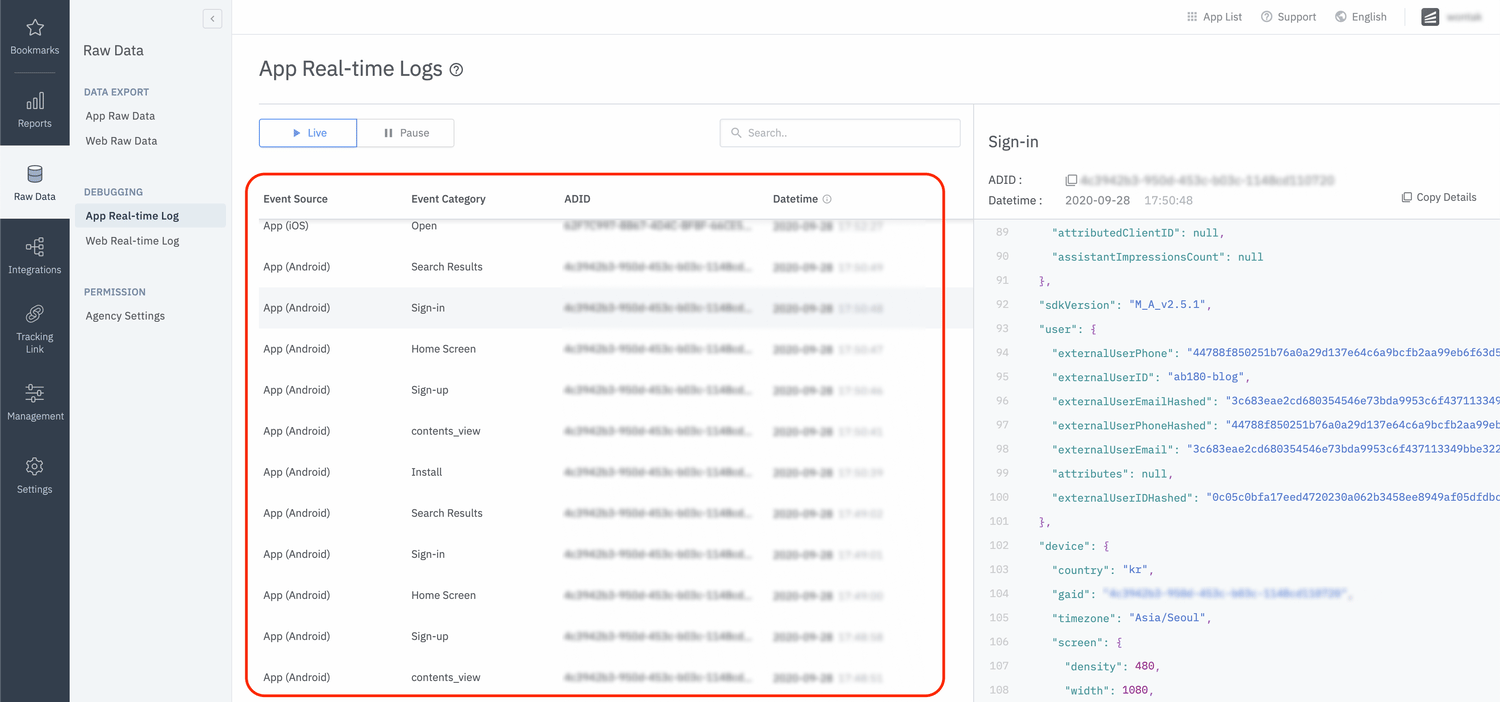 ## Advanced Setup
***
### SDK Signature Setup
Protection against SDK spoofing is possible once you input the "SDK Signature Secret ID" and "SDK Signature Secret" values in the "AB180 -> Airbridge Settings menu".
## Advanced Setup
***
### SDK Signature Setup
Protection against SDK spoofing is possible once you input the "SDK Signature Secret ID" and "SDK Signature Secret" values in the "AB180 -> Airbridge Settings menu".
 After adding the settings, you must enter the decryption key to see decrypted MIR. Refer to this [article](/en/guides/meta-business-google-play-install-referrer) to learn about MIR.
### Uninstall Tracking
After adding the settings, you must enter the decryption key to see decrypted MIR. Refer to this [article](/en/guides/meta-business-google-play-install-referrer) to learn about MIR.
### Uninstall Tracking